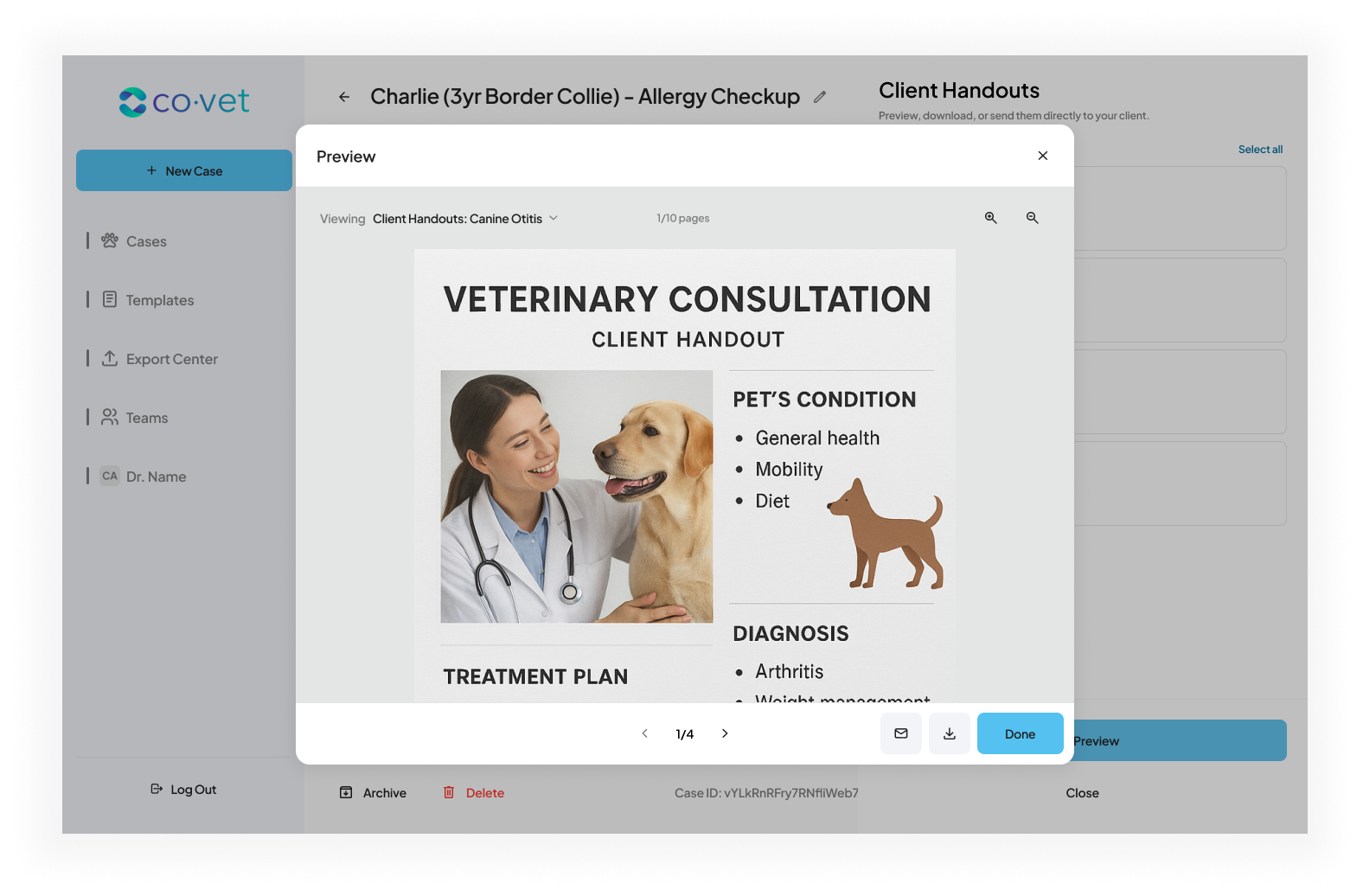
Client Handouts let you send professional, condition specific educational materials to pet owners directly from CoVet. Handouts are powered by Vetlexicon and can be previewed, generated as PDFs, and emailed to clients in just a few steps.
You can access Client Handouts from the case page, within content and templates, and while creating a discharge summary. .
Who Can Use Handouts?
Client Handouts are available to all users.
The feature can be turned on or off per user in Tools settings.
Enabling Handouts in Your Settings
Before using Client Handouts, enable the feature in your settings.
- Open Tools settings in CoVet.
- Find Client Handouts.
- Turn on the Client Handouts toggle.
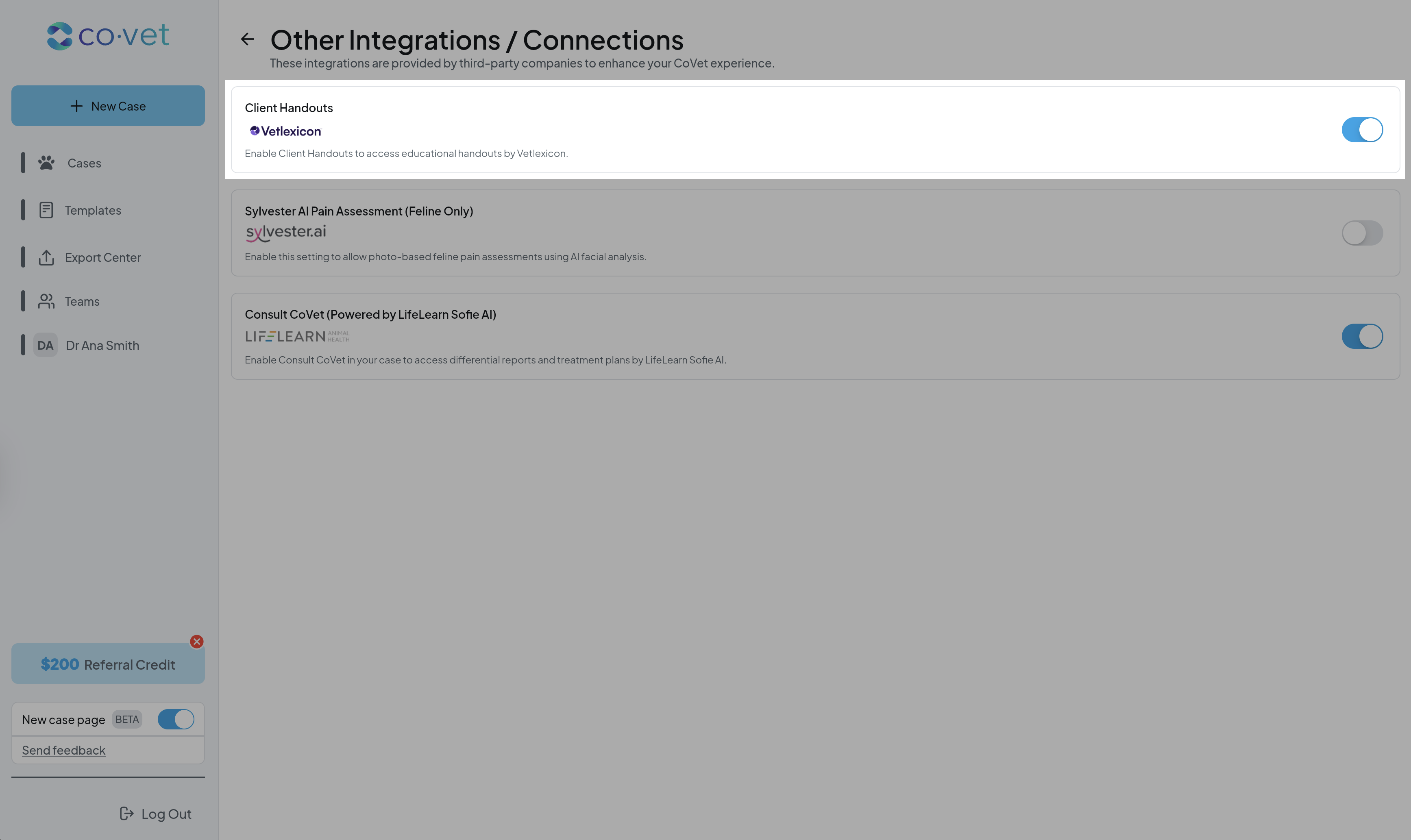
No additional setup is required. Once enabled, handouts will be available from supported areas in the app.
Open Client Handouts from a Case
You can browse handouts directly from a patient’s case.
Make sure medical notes or records have been created in the case before trying to browse for
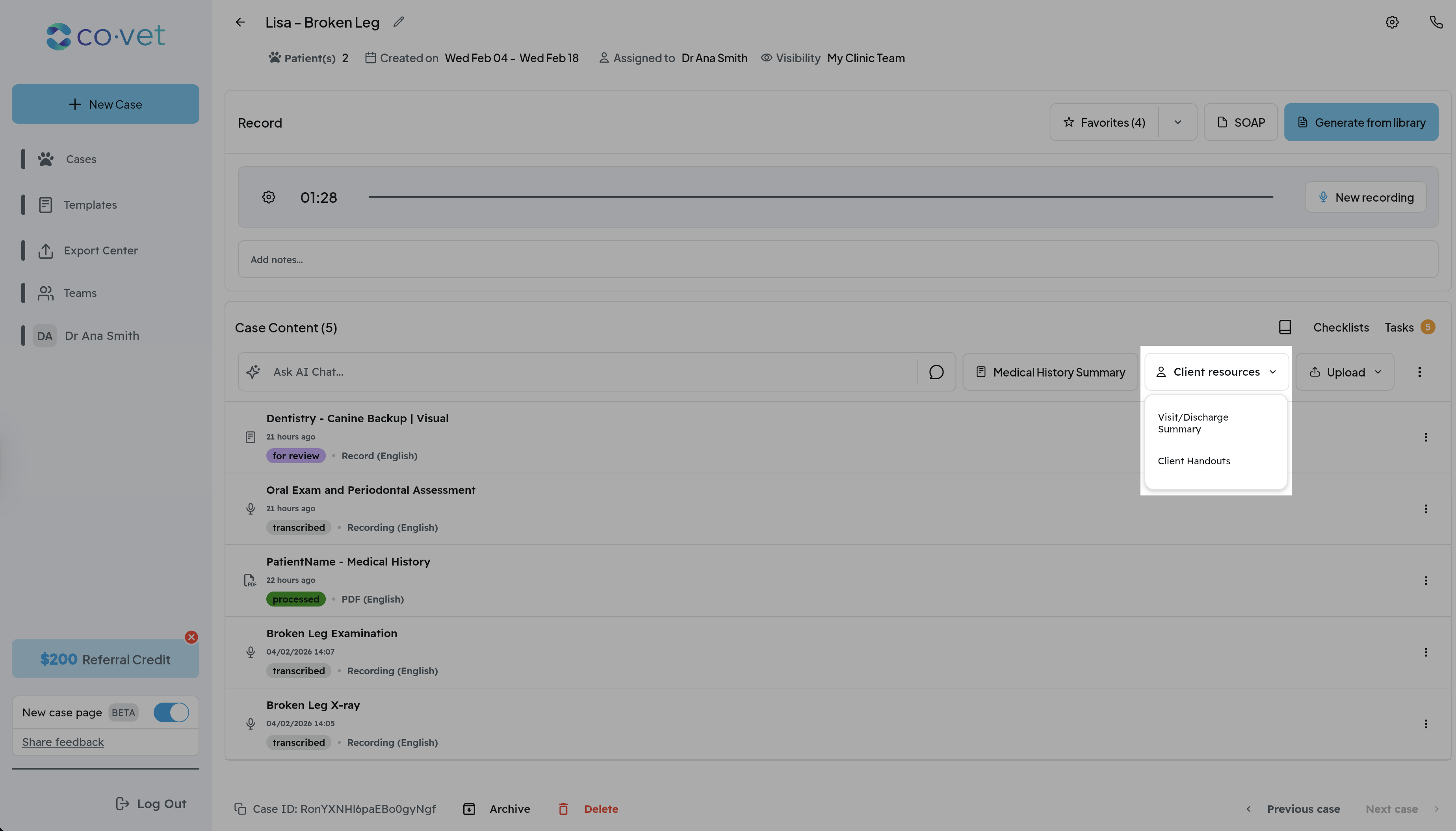
- Open a Case.
- Select Client Handouts
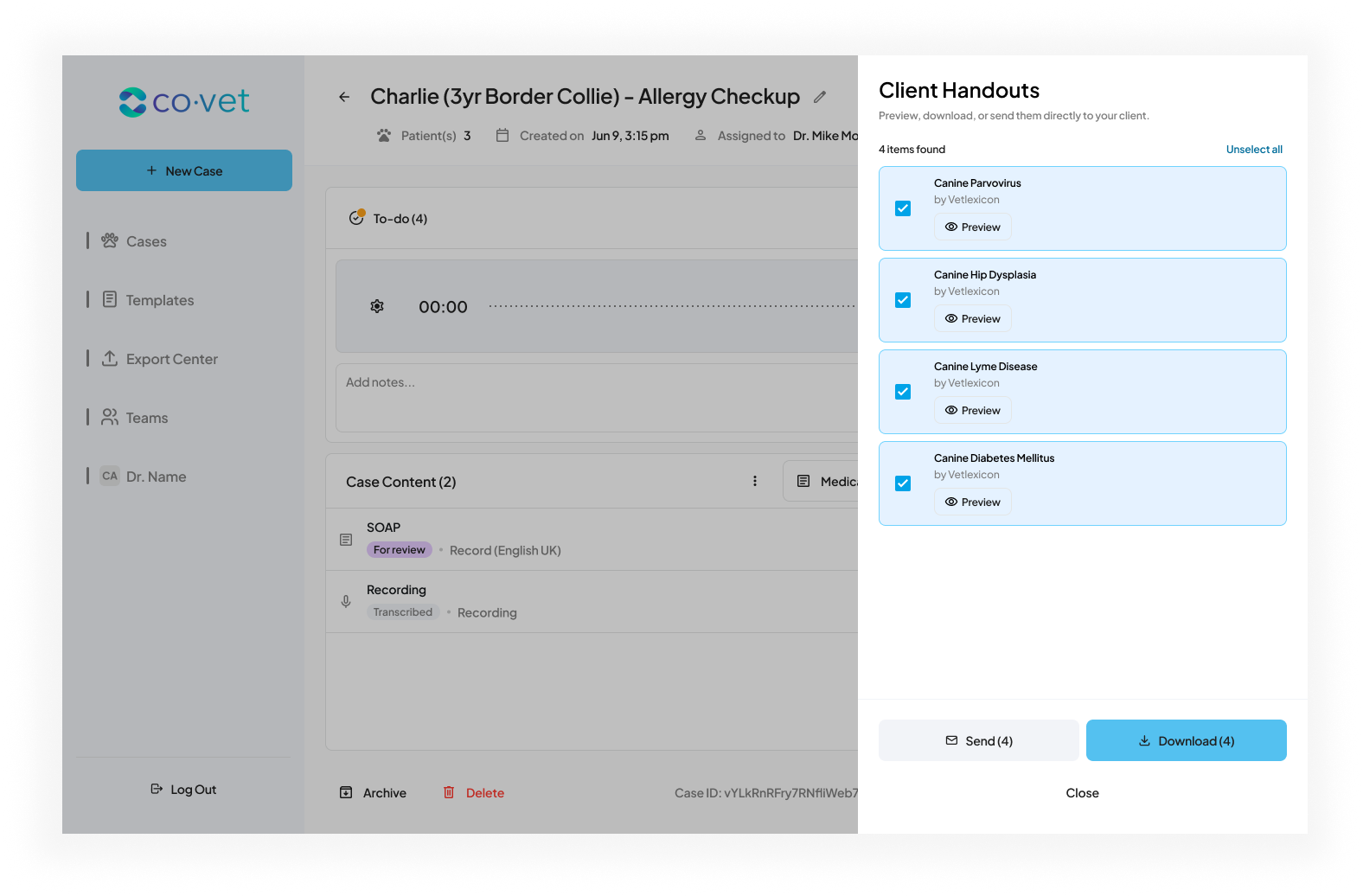
- Browse the handouts suggested based on the case details
- Select one or more handouts
You can preview any handout as a PDF before sending.
Preview and Generate Handouts
From the handout list:
- Select Preview to open the handout as a PDF.
- Review the content before sharing.
- Confirm your selection.
This allows you to check relevance and clarity before sending materials to the client.
Send Handouts to a Client
After selecting one or more handouts:
- Choose the option to Send.
- Confirm or enter the client’s email address.
- Add an optional personal note.
- Send the handouts.
The selected handouts will be delivered to the pet owner as PDFs.
You can also download the handouts as PDFs if you prefer to share them another way.
Use Client Handouts in a Discharge Summary
While creating a discharge summary:
- Open or create a Discharge Summary.
- Select Client Handouts.
- Browse and select relevant materials.
- Include them with the summary.
You can preview handouts before sending or generating final documents.
Tips for Success
- Review suggested handouts to ensure they match the patient’s diagnosis or treatment plan.
- Use the preview option to confirm clarity before sending.
- Add a short personal note when emailing handouts to reinforce key instructions discussed during the visit.
Sharing Feedback or Reporting an Issue
If you spot an issue or want to share feedback, use the Feedback button on the Case Page.
Including what you clicked and what you expected to happen helps the team respond faster.
Was this article helpful?
That’s Great!
Thank you for your feedback
Sorry! We couldn't be helpful
Thank you for your feedback
Feedback sent
We appreciate your effort and will try to fix the article