Account switching lets you move between user accounts on shared workstations without logging in and out each time.
Set a personal 4 digit PIN and switch with ease.
Why Use Account Switching?
A workstation at reception, in an exam room, or in treatment may be used by many team members in a single shift.
Account Switching helps by:
- Reducing repeated logout and login steps
- Keeping work moving during busy handoffs
This feature is available to all users.
Set Up Account Switching
Each user must set up Account Switching for their own account.
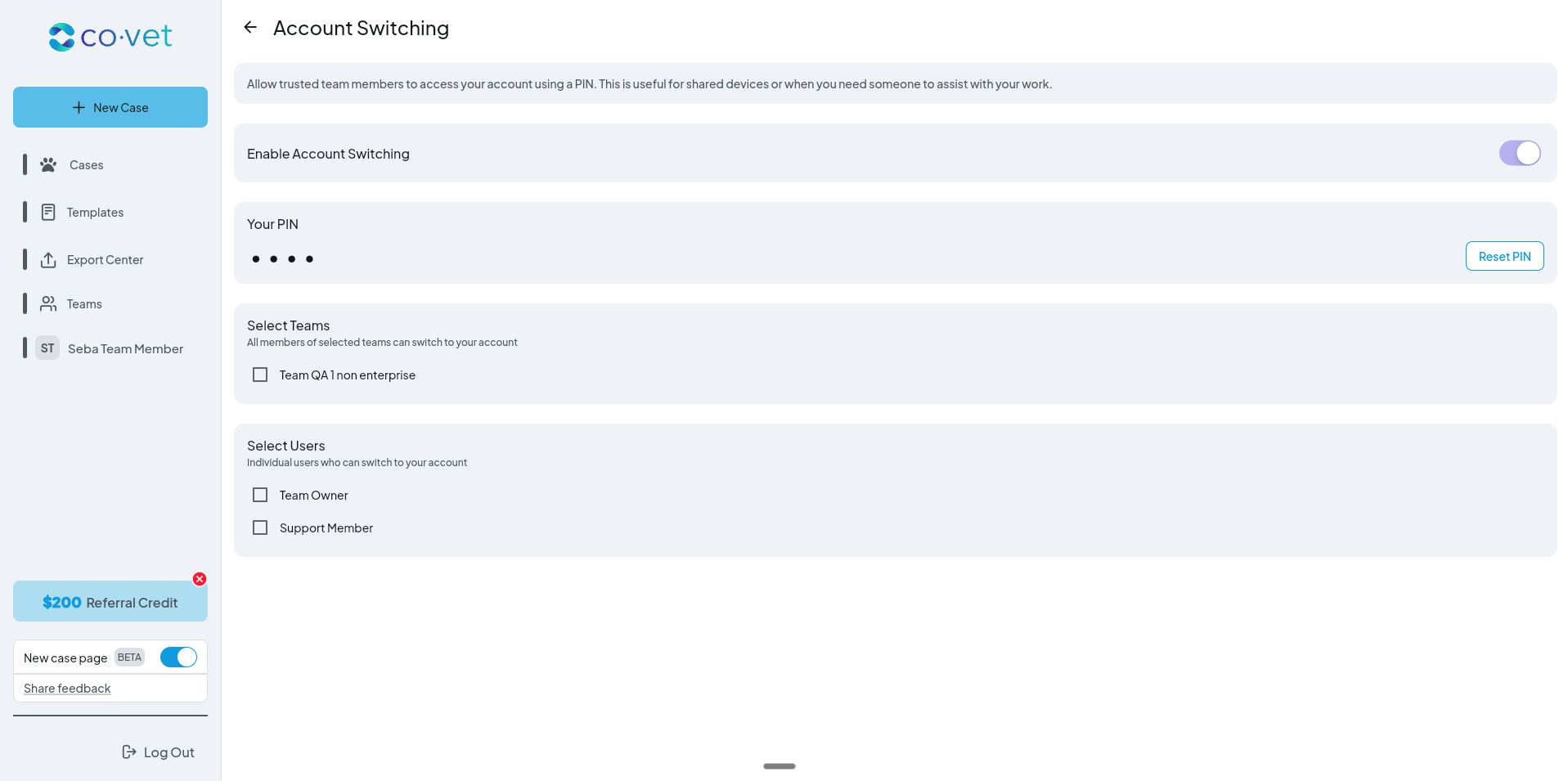
- Open Profile Settings in CoVet.
- Find the Account Switching section.
- Turn on Account Switching.
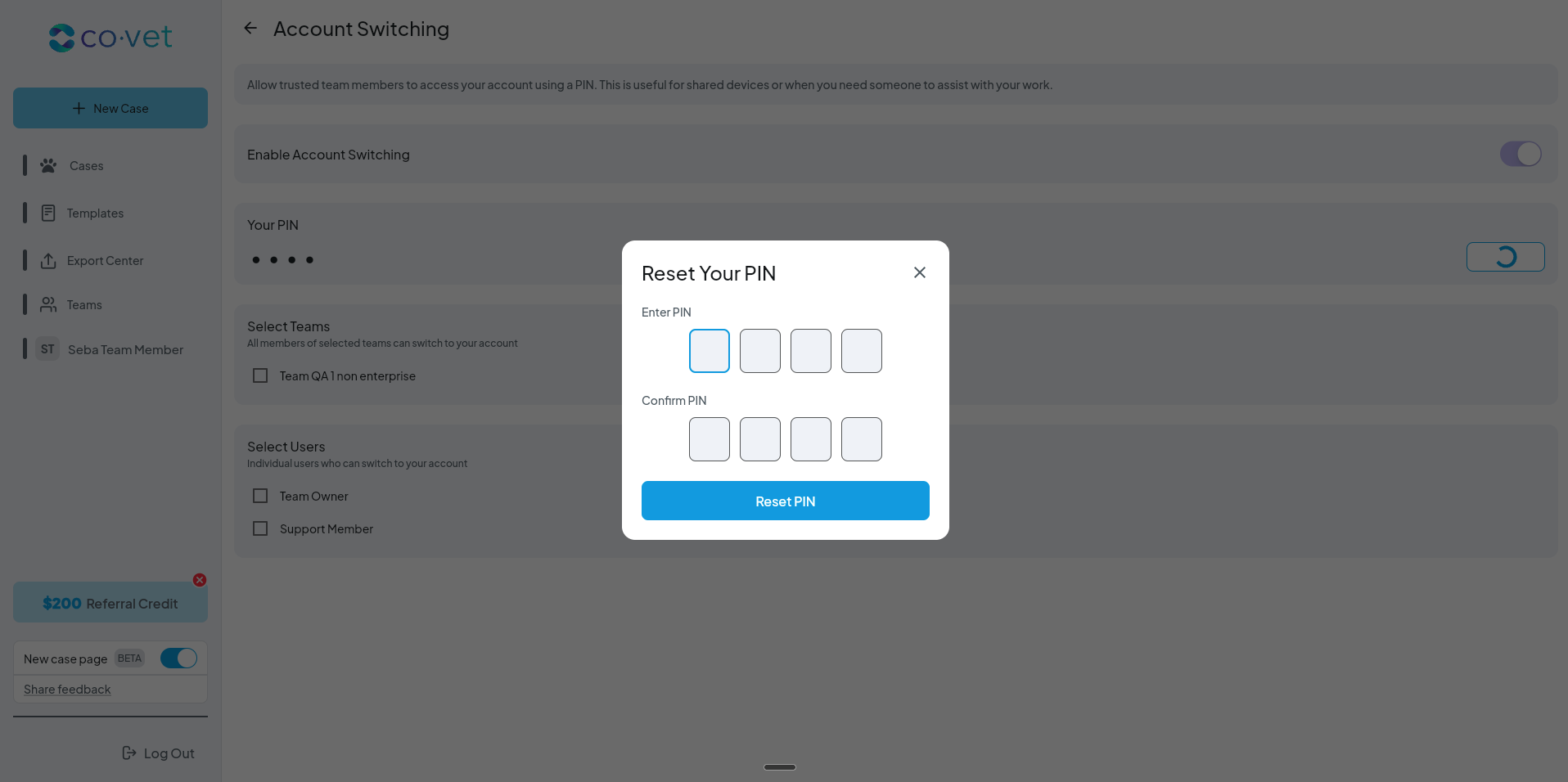
- Create your personal 4 digit PIN.
Once enabled, your account will appear as an option in the Switch Account list on shared workstations.
You can manage or update Account Switching from Profile Settings at any time.
Switching Accounts on a Shared Computer
When CoVet is open on a shared workstation:
- Open the Switch Account option.
- Select your name.
- Enter your personal 4 digit PIN.
You will be switched into your CoVet account.
Tips for Success
- Set up your PIN as soon as you enable Account Switching.
- Keep your PIN private and use one that is easy for you to remember.
- If you cannot switch into your account, confirm that you have enabled Account Switching and set your PIN in Profile Settings.
Sharing Feedback or Reporting an Issue
If you spot an issue or want to share feedback, use the Feedback button on the Case Page.
Including what you clicked and what you expected to happen helps the team respond faster.
Was this article helpful?
That’s Great!
Thank you for your feedback
Sorry! We couldn't be helpful
Thank you for your feedback
Feedback sent
We appreciate your effort and will try to fix the article