Setting up the Instinct integration allows CoVet to automatically sync appointments and medical records between your practice management system and your CoVet workspace.
Once the Instinct integration setup is complete, you’ll be able to import cases, link them to Instinct appointments, and export records back to Instinct with ease.
There are multiple articles that will help you with different aspects of the Instinct integration.
Use these links to jump between these articles quickly.
Important to read before using the integration
How to use the integration following set-up
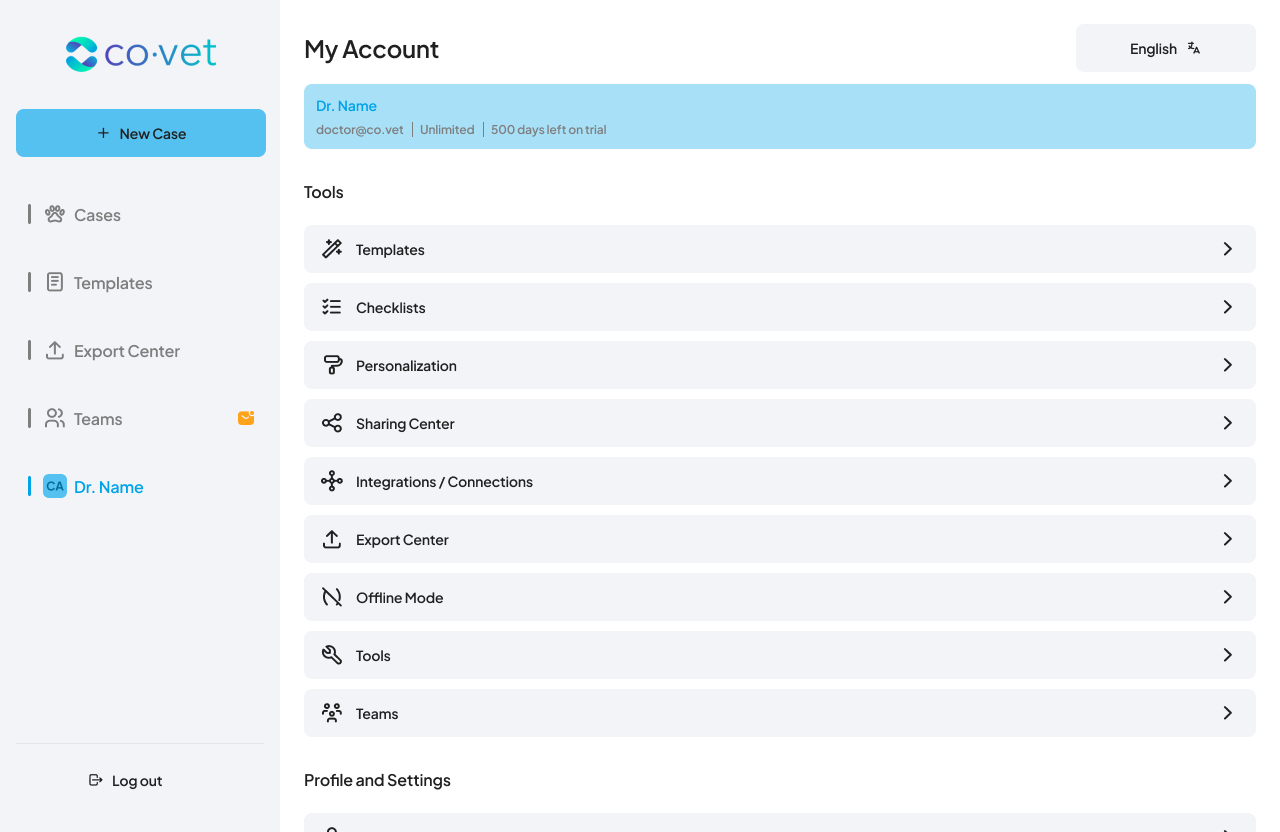
1. Navigate to Integrations from the My Account page
Click on your name in the top navigation to open the My Account page. Once there, select Integrations/Connections from the available menu options to proceed.
2. Select and configure the Instinct integration
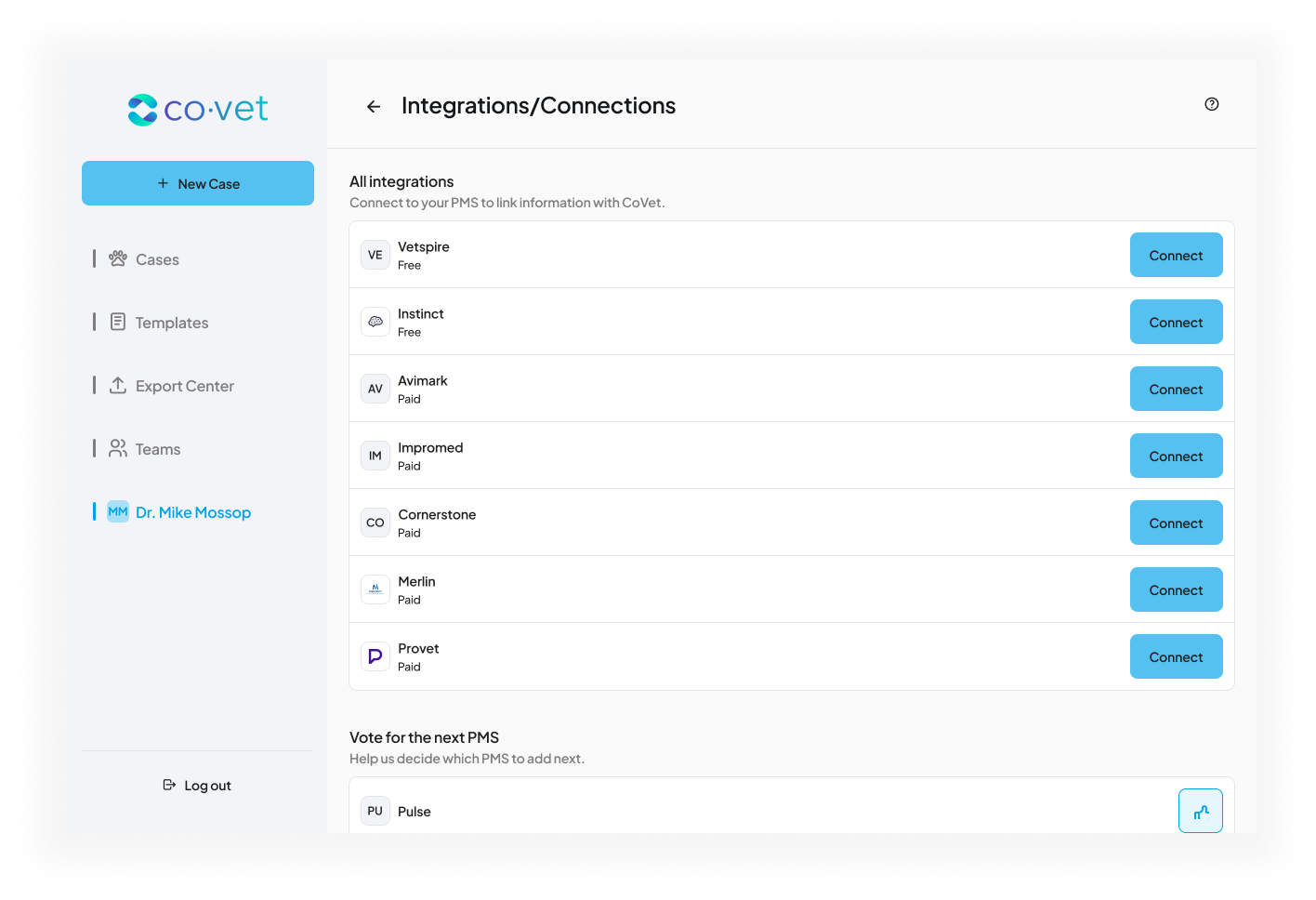
Click the Connect button located under the Instinct tile.
3. Review the steps for the integration process
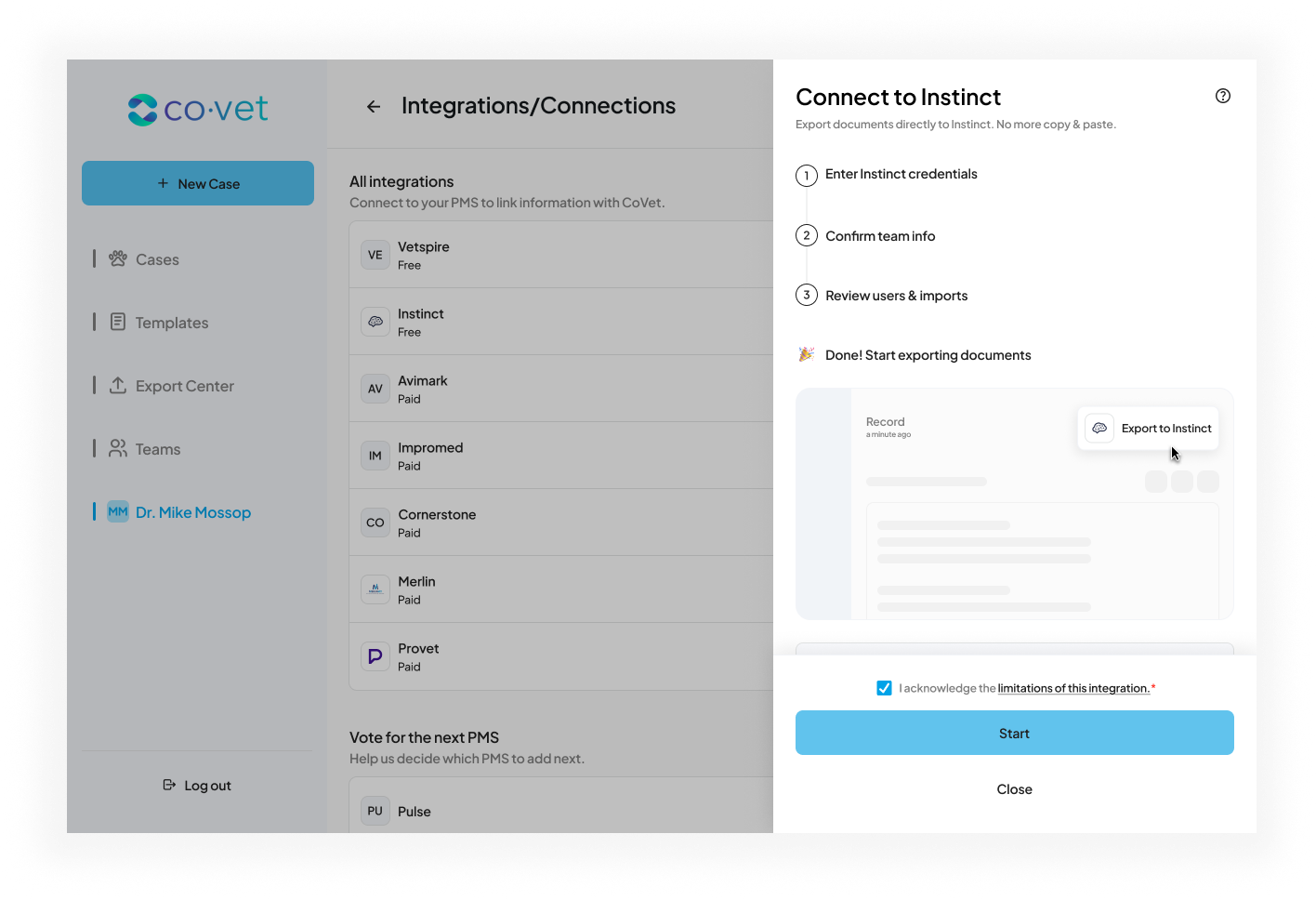
The next screen will clarify the steps needed to set up an integration with CoVet. Please review these steps and the links to any limitations with this Practice Management Software:

4. Add the CoVet Application in Instinct and gather your Instinct ID and Clinic Location ID
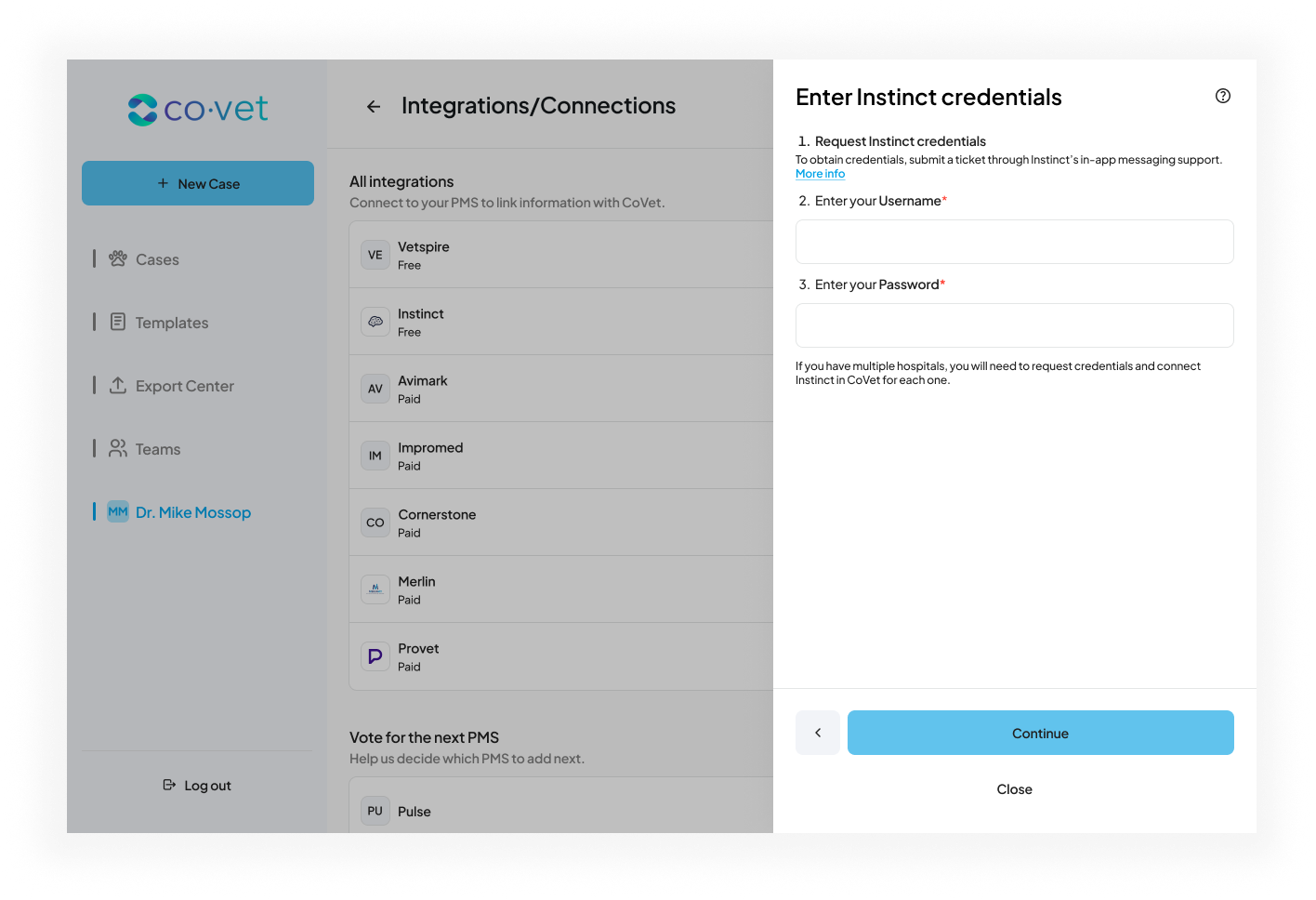
In this screen, follow the steps to connect Instinct with your CoVet account.
Note: In order to get the Instinct Username and Password, you need to submit an Instinct support ticket through their in-app messaging. Please take this step before continuing with your integration setup.
5. Confirm the Integration with Instinct
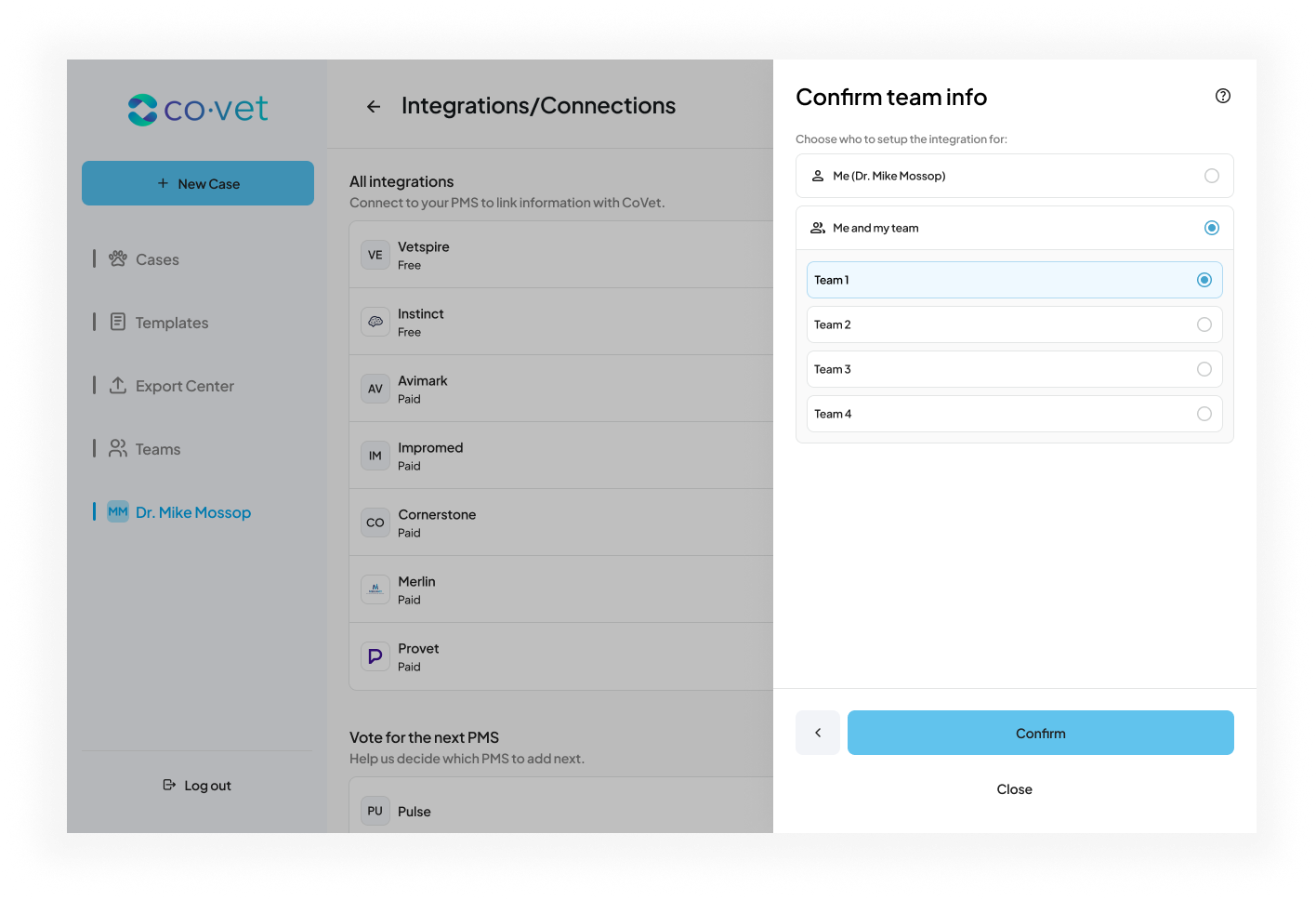
In the next screen that appears, you can choose who to set up the integration for Ensure to set this up for your team, if you are a part of one. Once ready, click Confirm to proceed.
6. Match your CoVet Account Names to the Instinct Users
In this screen, match up the members of your Team on CoVet with how they appear in Instinct.

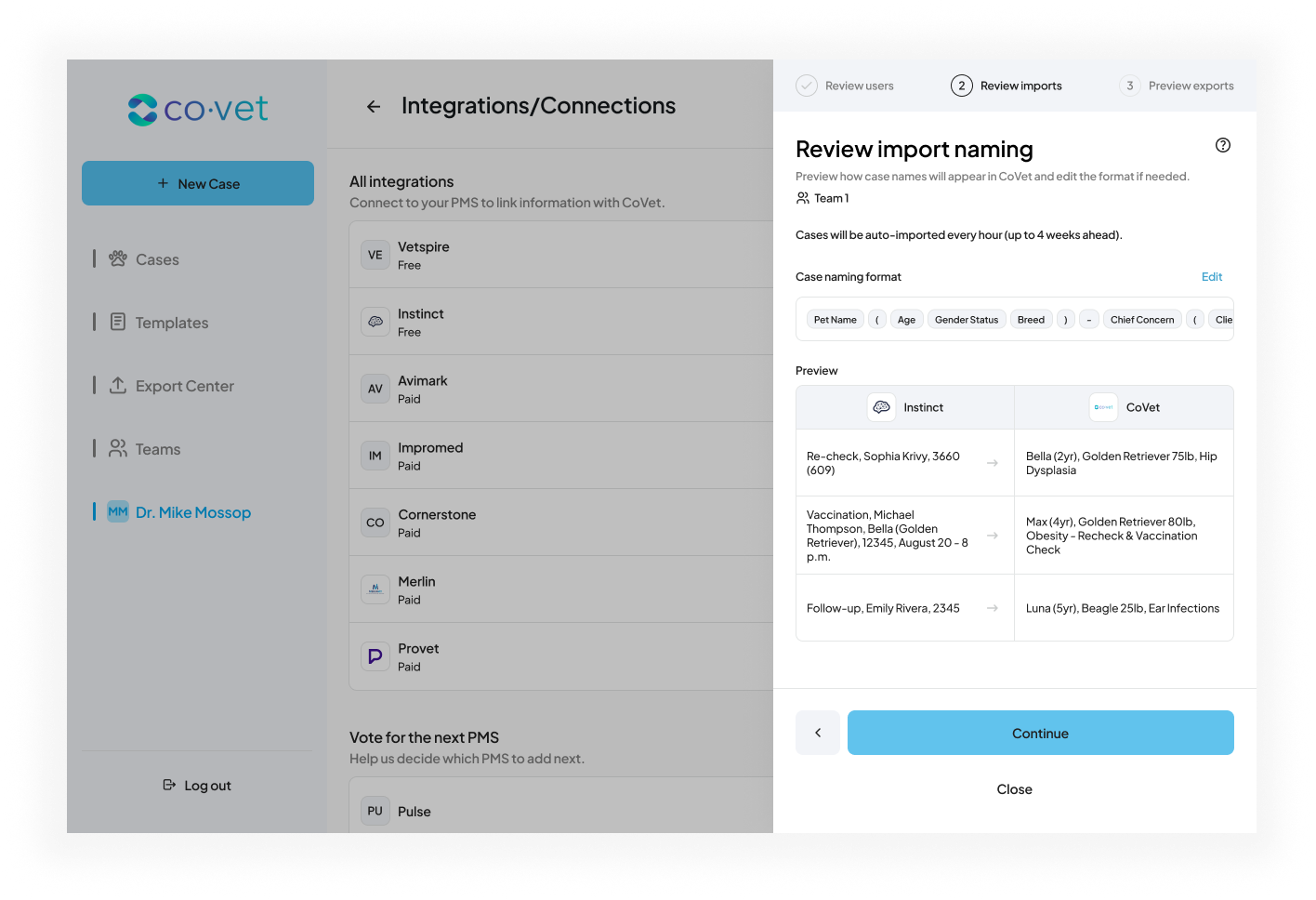
7. Review how imported appointments will appear
On the next screens, you can review how the names of your appointments from Instinct will appear when they are imported into CoVet. The first screen lets you review the case names with previews of some connected appointments. You can edit the case naming format by clicking Edit.
8. Review how exported cases will appear
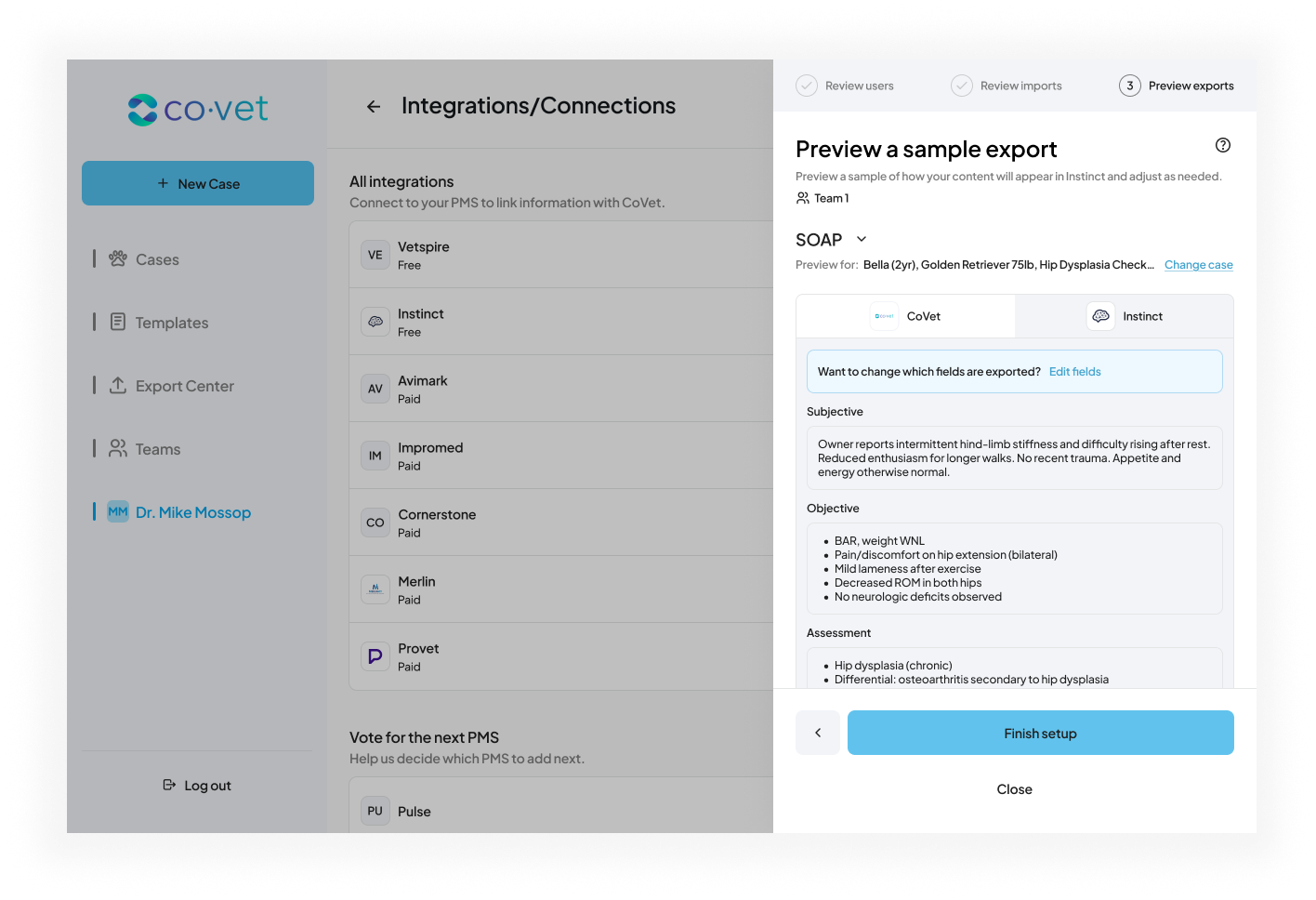
This screen shows how your notes in CoVet will be exported back into Instinct. If you wish to adjust the areas your notes will export to, click Edit fields.
9. Complete setup and start using the Instinct integration
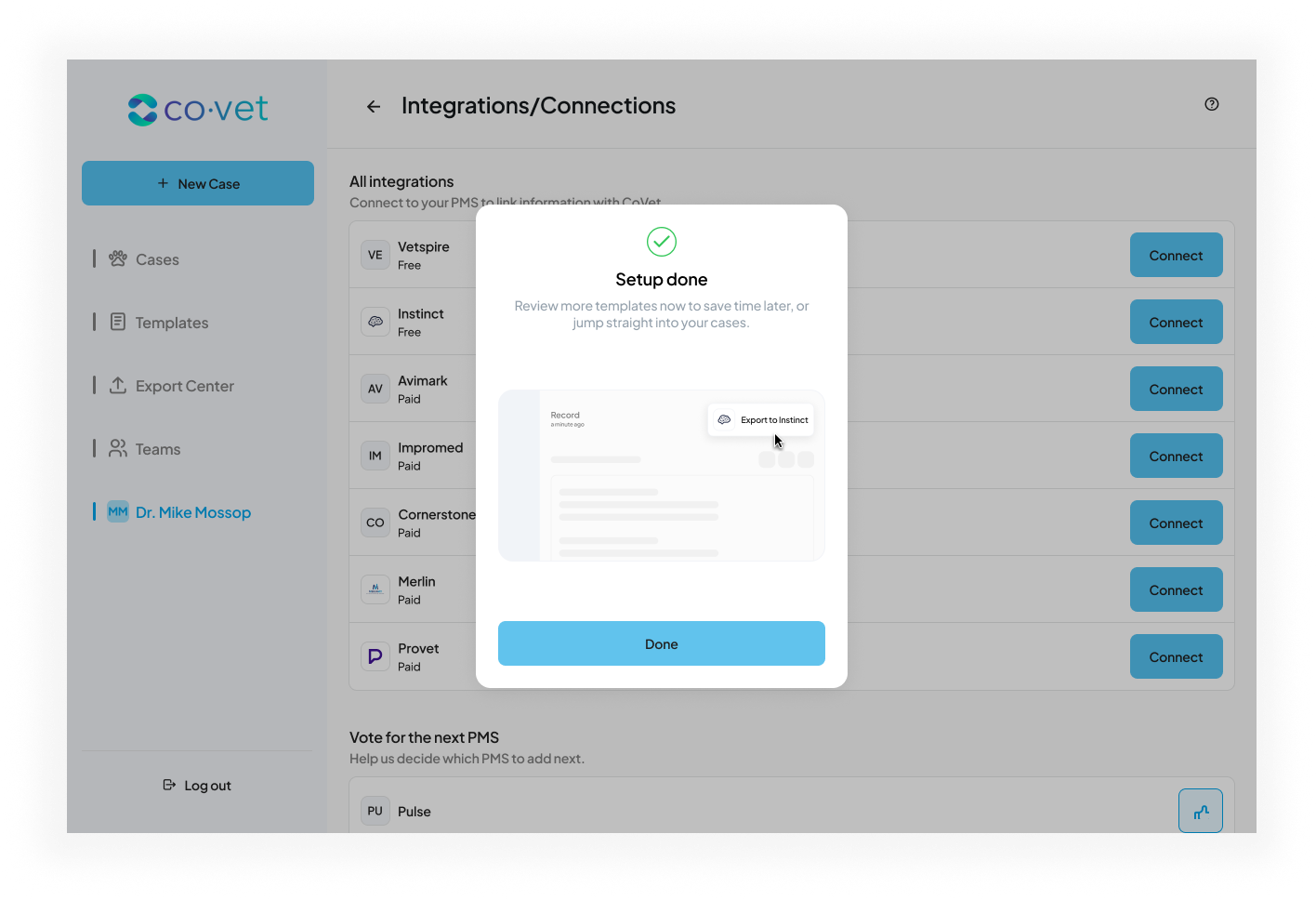
After previewing your sample export, you will receive a confirmation message indicating that the setup is complete. At this point, your Instinct integration is ready to use.
Was this article helpful?
That’s Great!
Thank you for your feedback
Sorry! We couldn't be helpful
Thank you for your feedback
Feedback sent
We appreciate your effort and will try to fix the article