The Instinct integration allows you to export documents from CoVet to your PMS with a single click so you can get on with your day.
There are multiple articles that will help you with different aspects of the Instinct integration.
Use these links to jump between these articles quickly.
Important to read before using the integration
How to use the integration following set-up
There are multiple articles that will help you with different aspects of the Instinct integration.
Use these links to jump between these articles quickly.
Important to read before using the integration
How to use the integration following set-up
As you create content within those linked CoVet cases, such as documents, notes, and records, the integration allows you to export that content back to Instinct. This ensures all case-related materials are automatically saved under the correct patient record in Instinct, reducing manual work and keeping patient files complete and up to date.
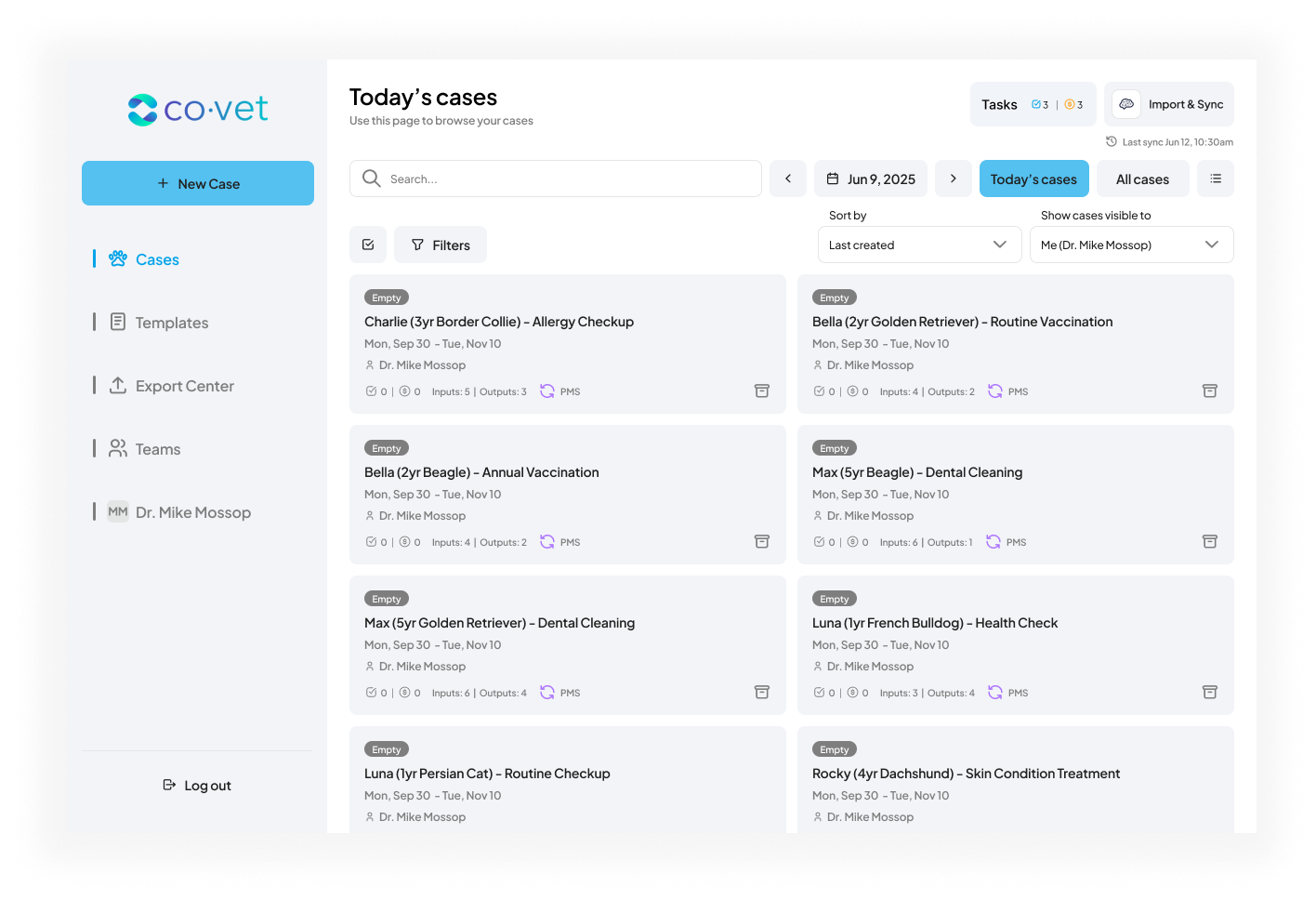
1. Navigate to the case you want to export from
You can easily export your content from CoVet back into Instinct with a single click.
Click into the case you want to export to get started.
2. Select and review the document you want to export
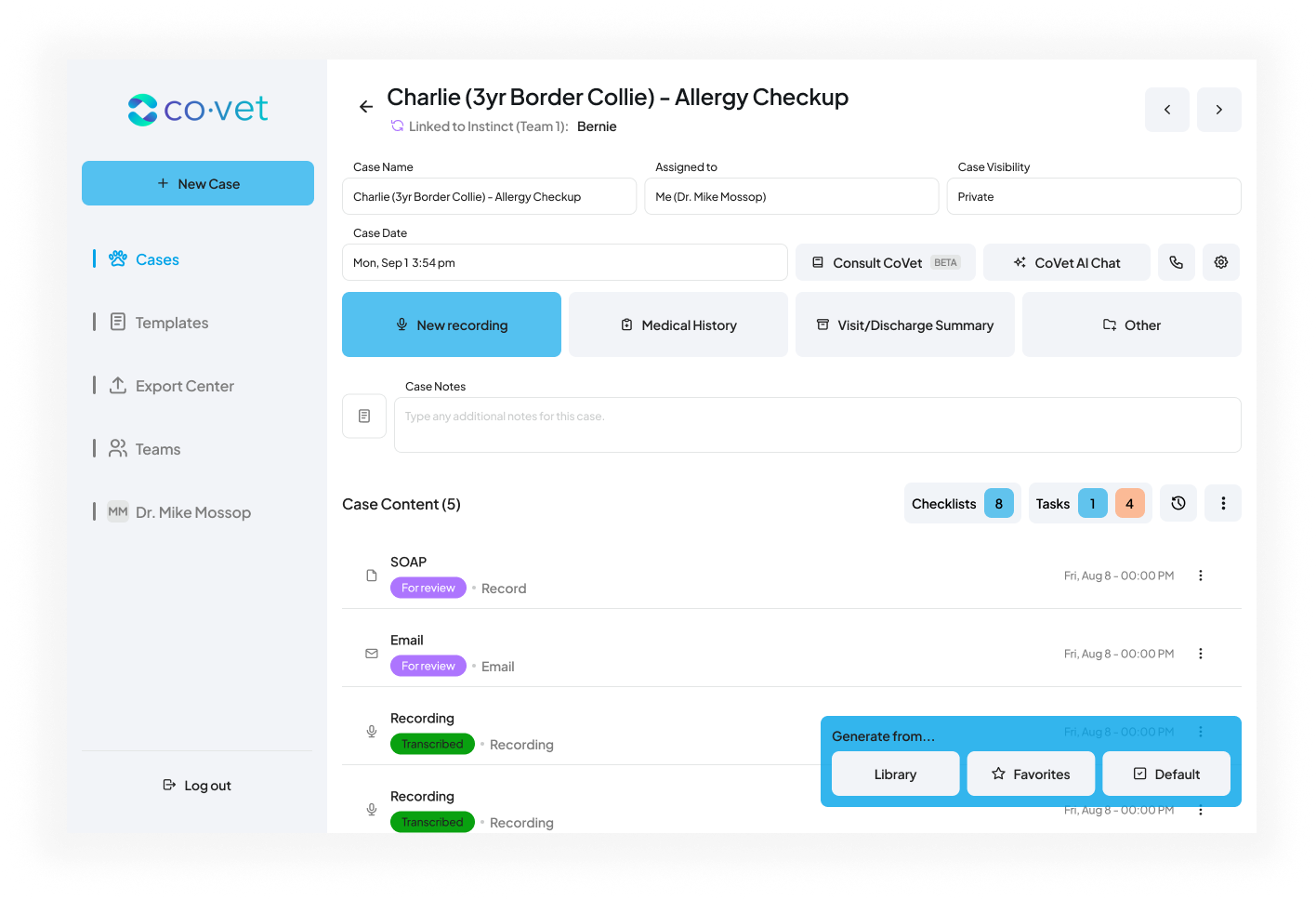
From within your linked case in CoVet, locate the record you wish to export to Instinct in the case content feed. Click on the record to open it. In this instance, we are using the SOAP record.
You will have the opportunity to review the record and make any necessary edits at this stage, just as you normally would when preparing case content. Once you are satisfied with the content, proceed to the next step to export the record.
3. Export the document to Instinct
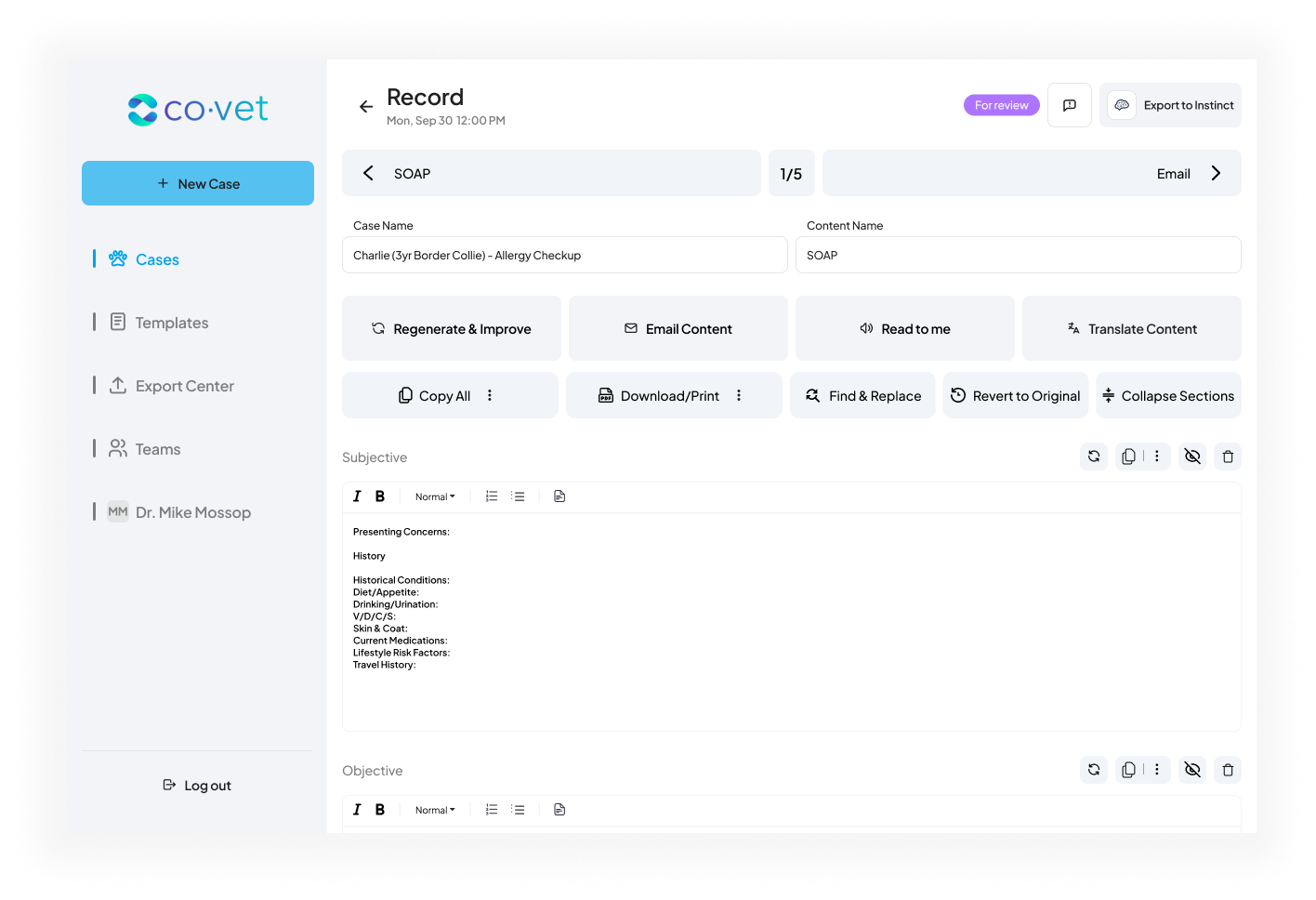
When you're ready to send the document to Instinct, click the Export to Instinct button at the top right.
Clicking this will export the record directly into Instinct, associating it with the correct patient and appointment, thanks to the established case link.
4. Review and finalize your export
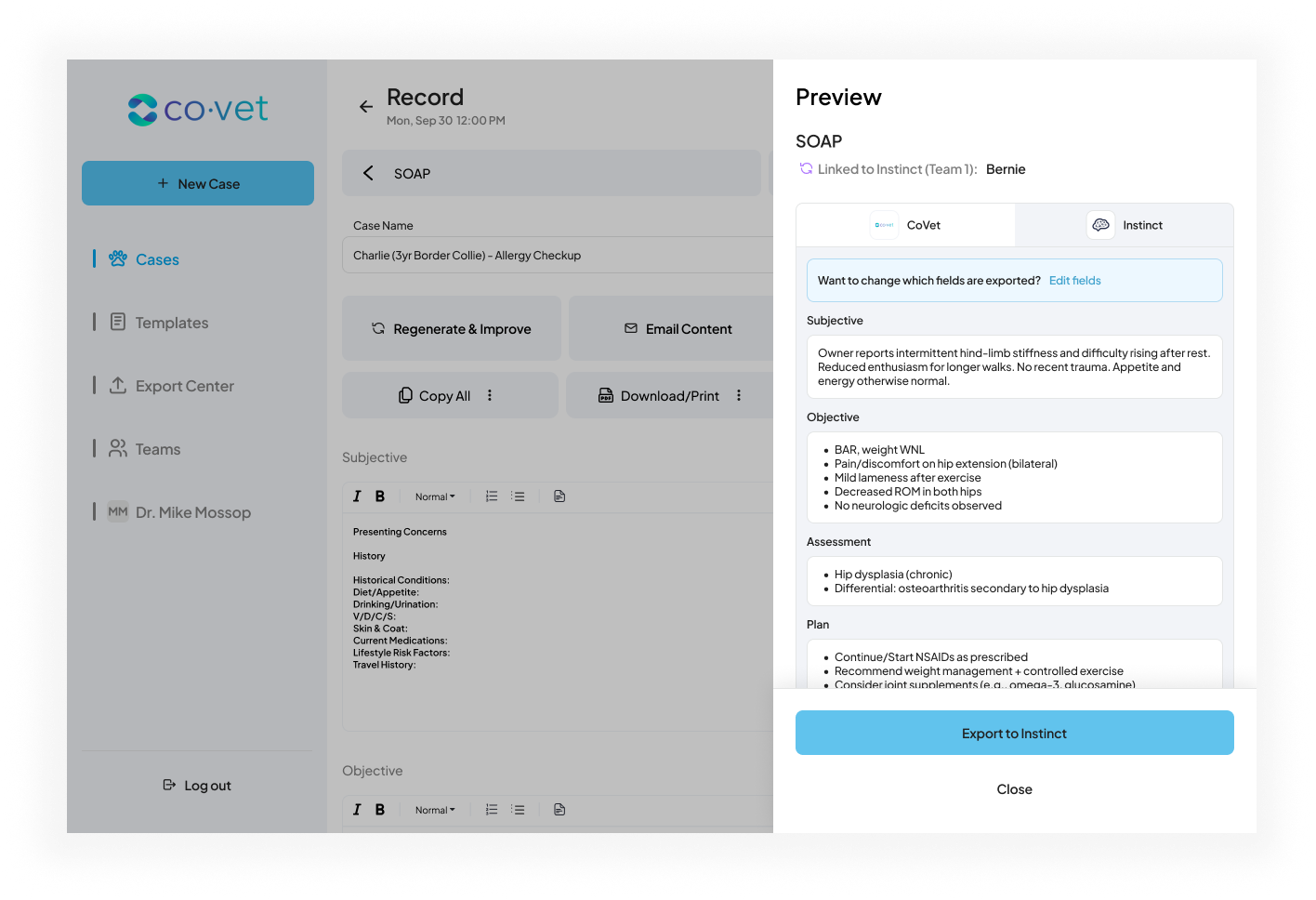
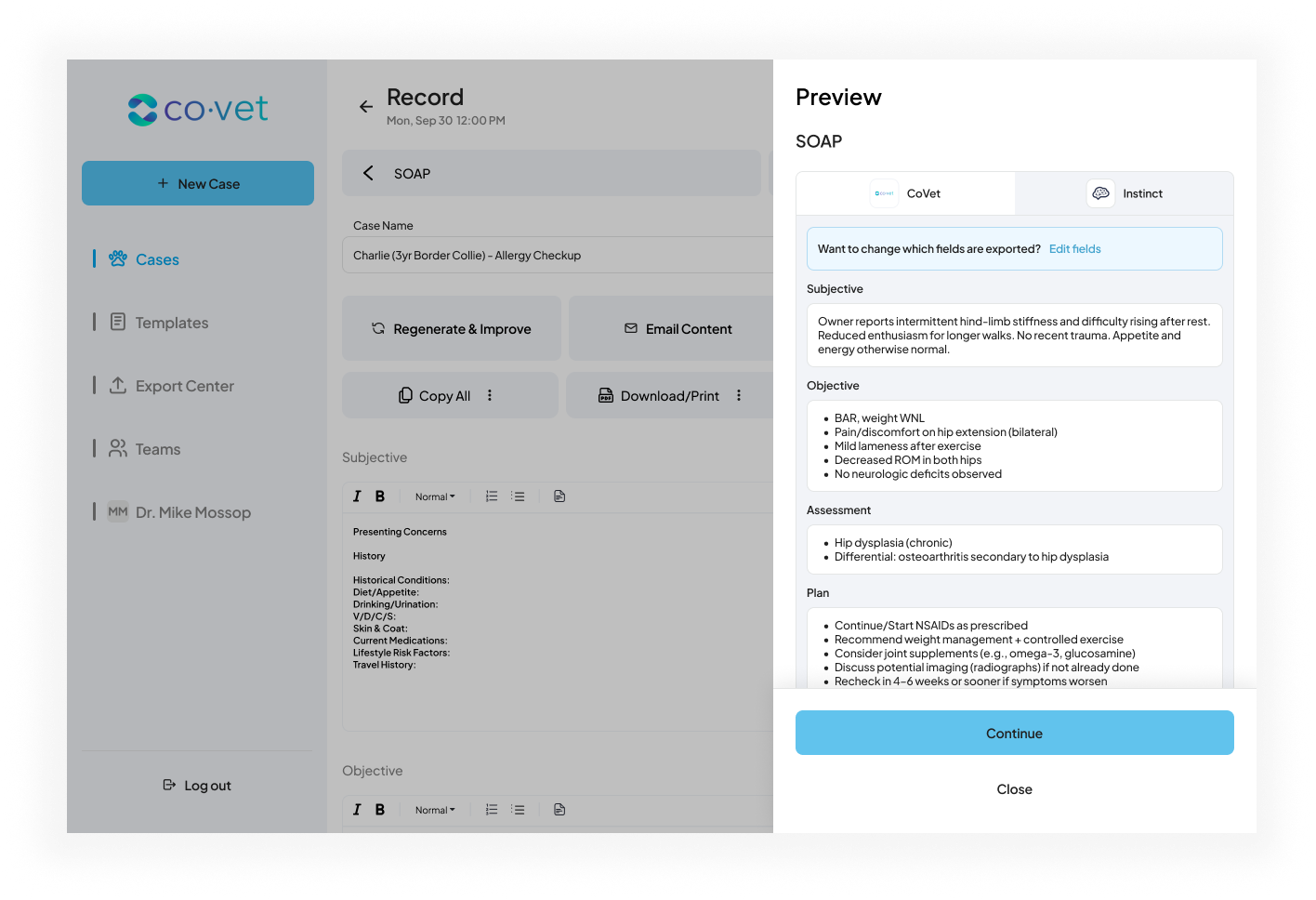
After clicking Export to Instinct, a pop-up will appear on the right-hand side of the screen showing a preview of your record and how it will appear in Instinct. If you are happy with the record, you can click the blue Export to Instinct button or you can click Edit fields to make any changes.
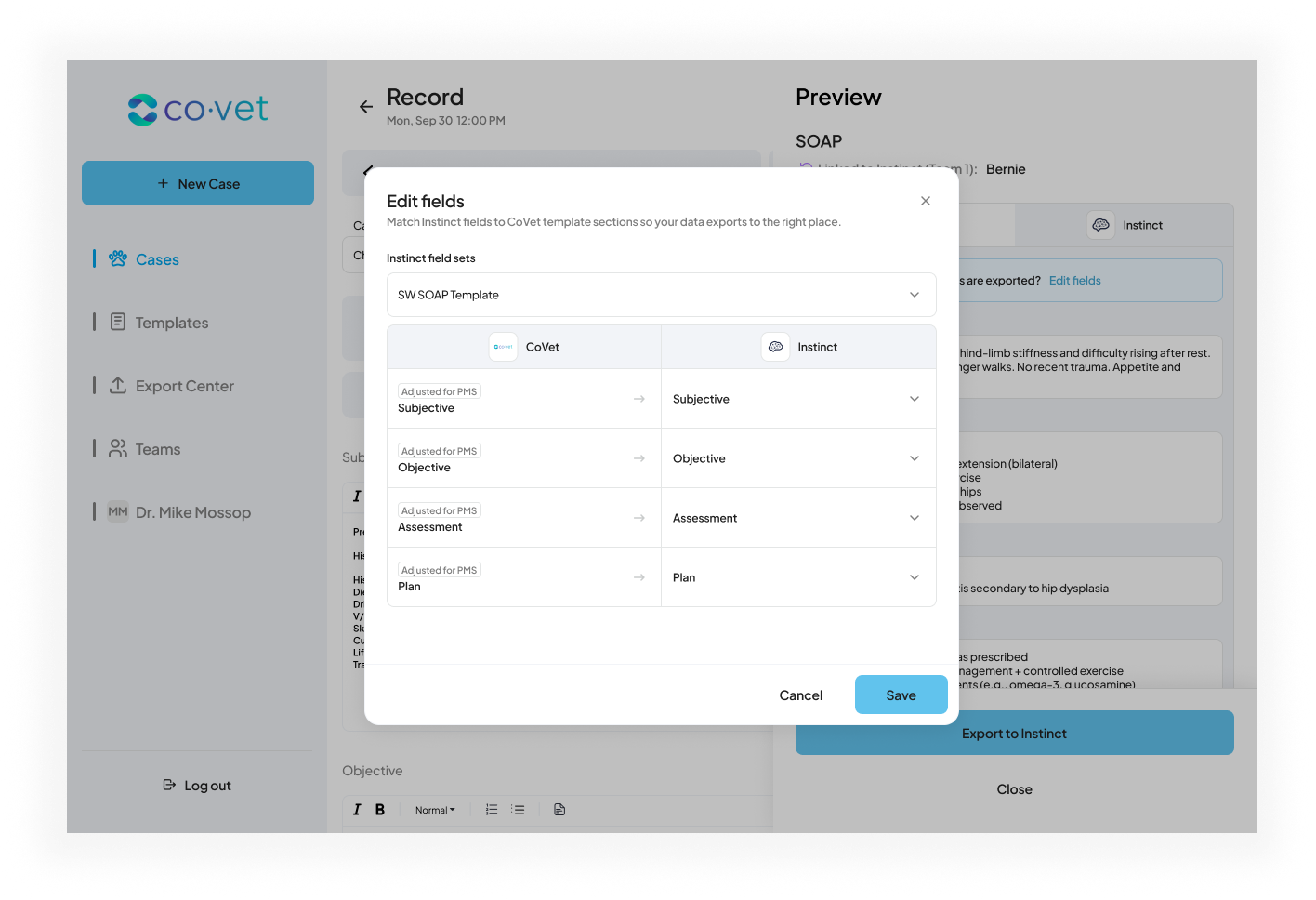
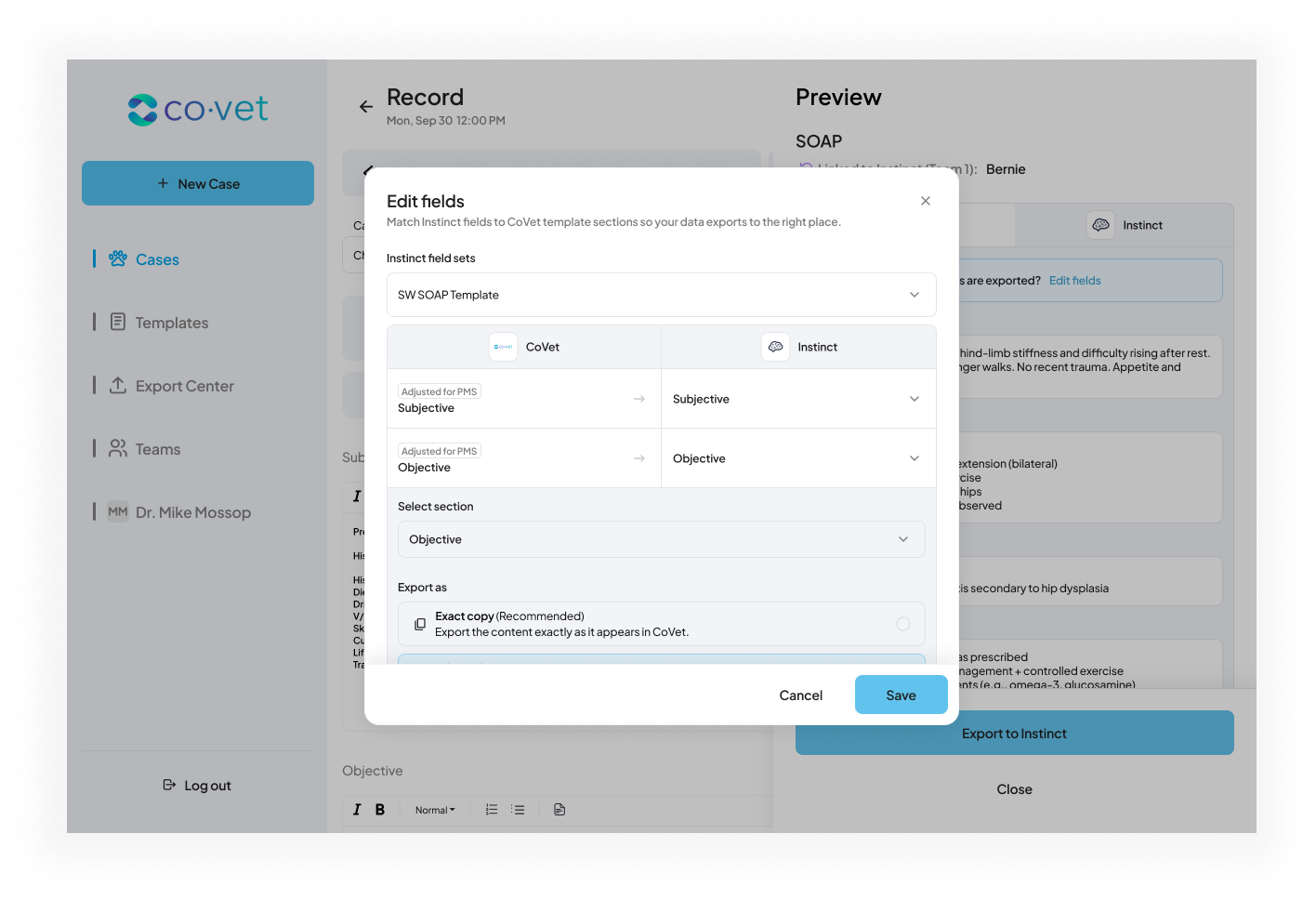
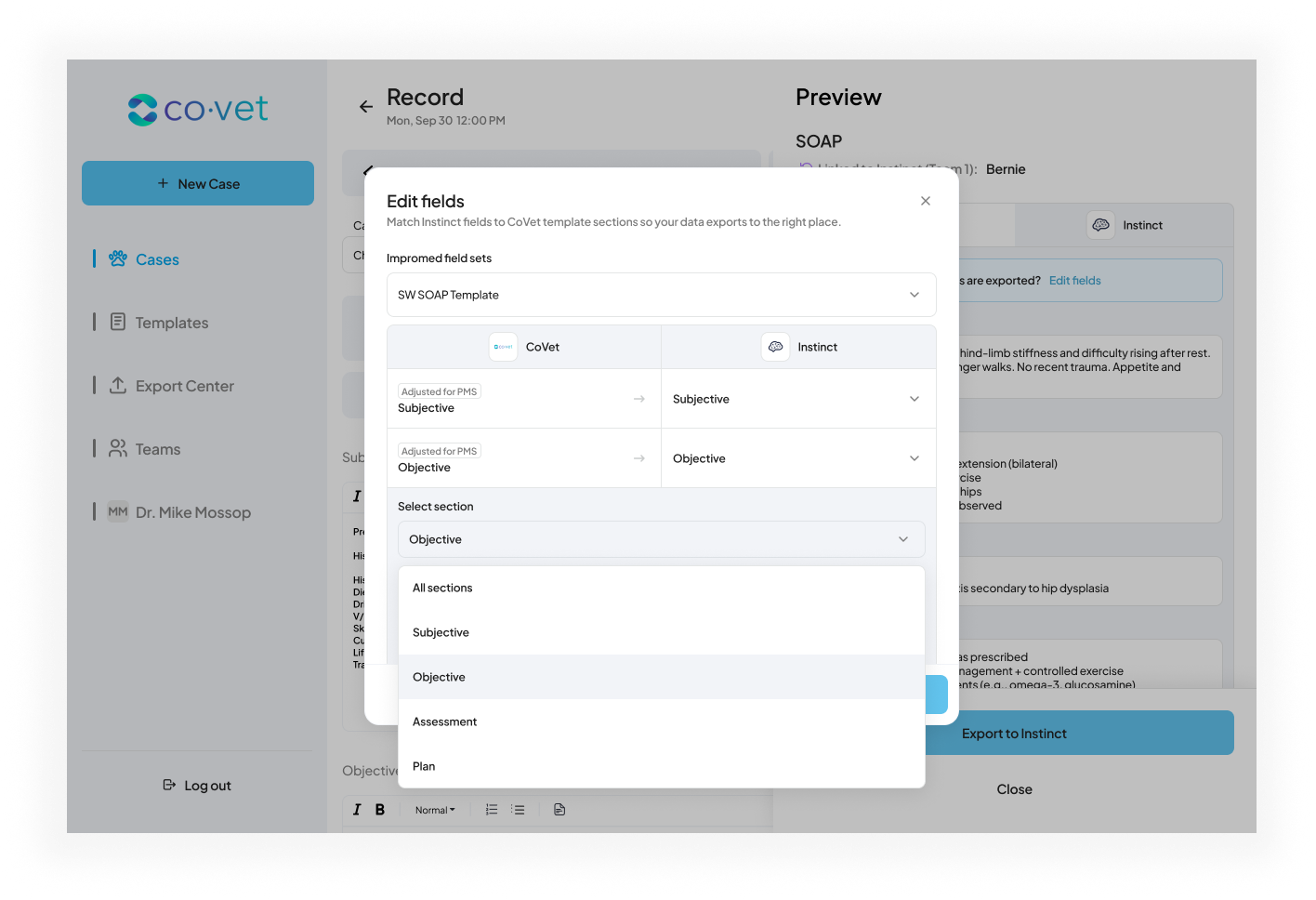
Dealing with unlinked cases
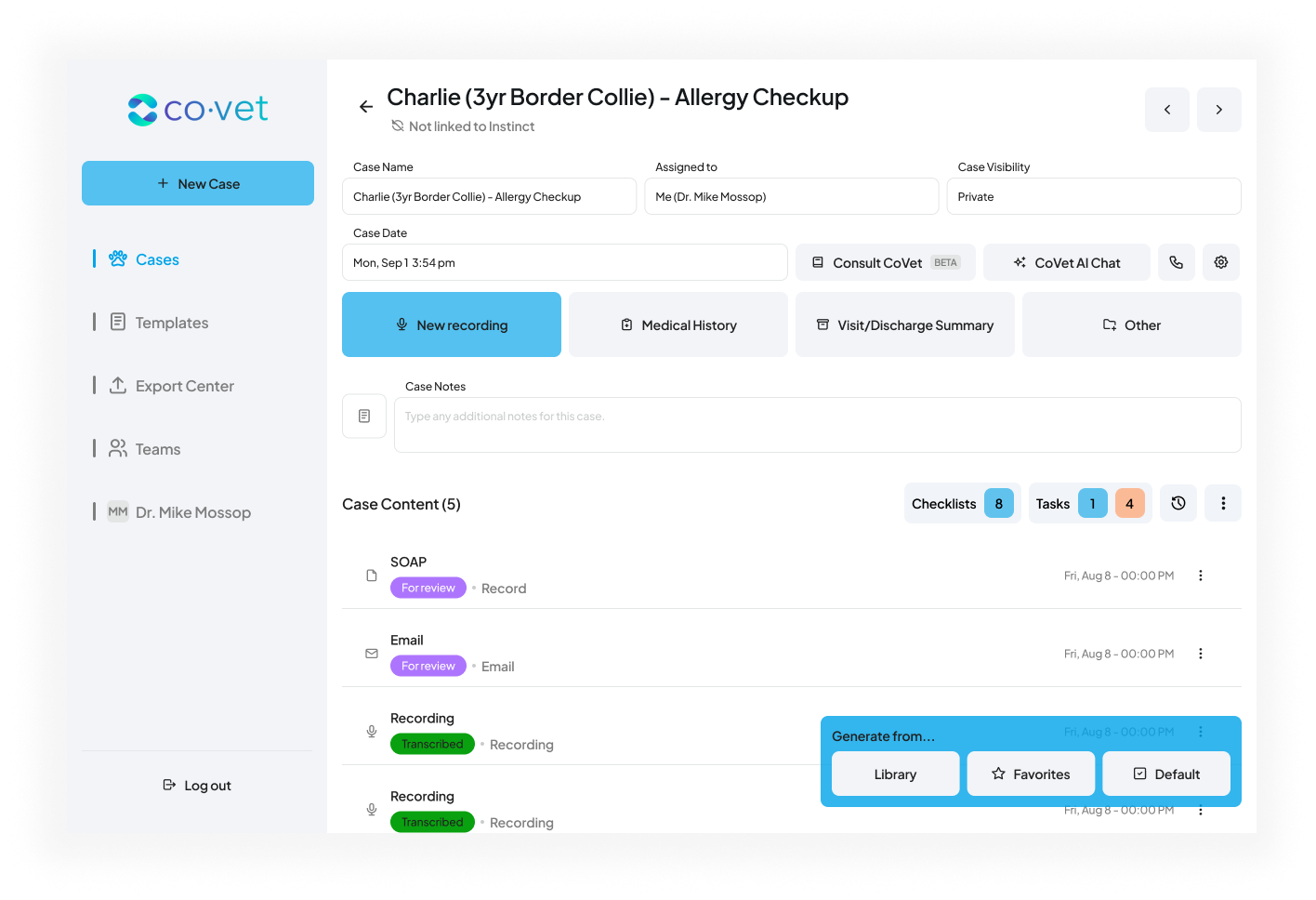
If a case was imported from Instinct (either automatically or manually) it will already be linked, and you will see Export to Instinct.
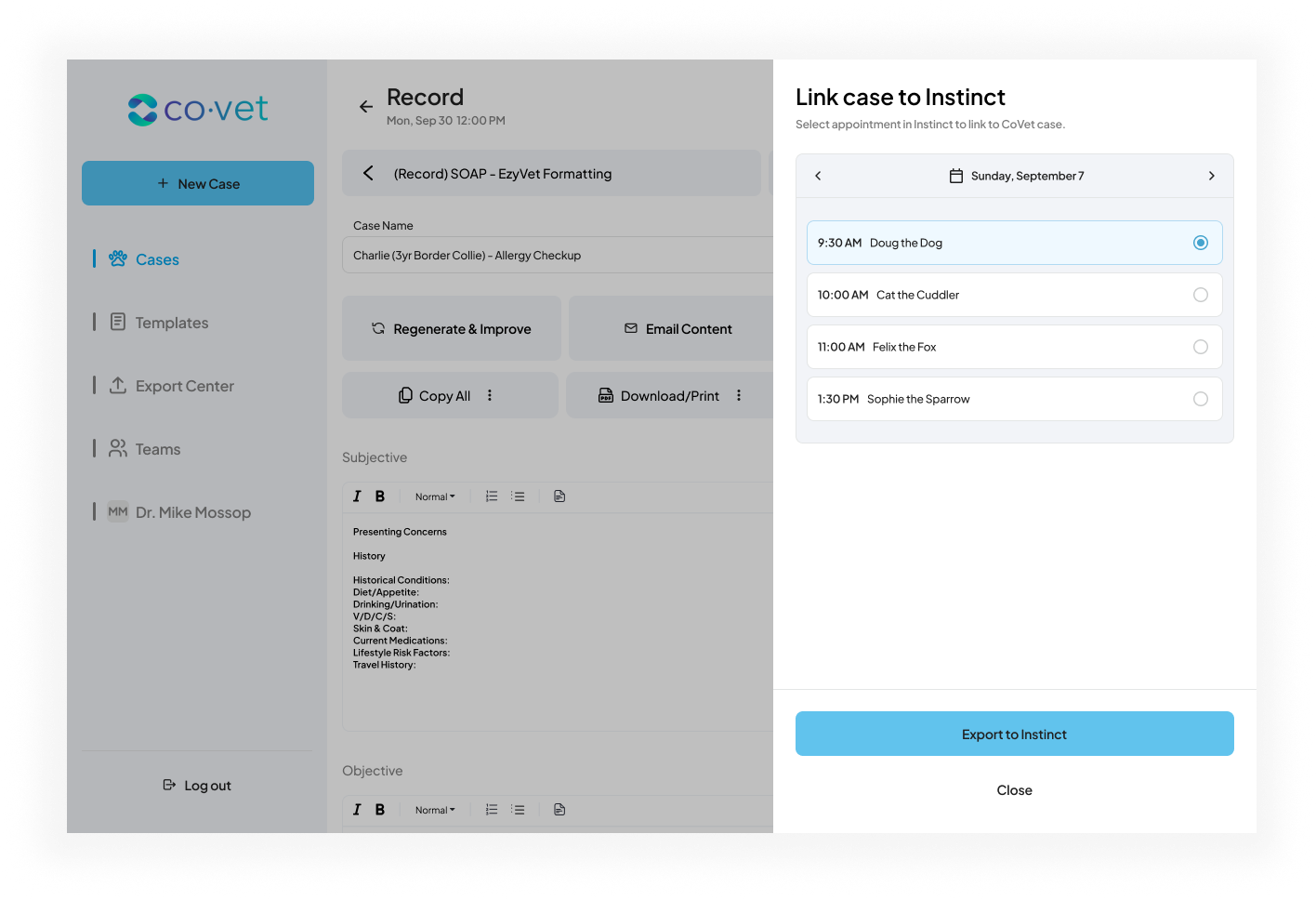
If your case is currently unlinked, you will see a note that the case is Not linked to Instinct. Within the record, when you click Export to Instinct in the top right, the button at the botton of the preview will appear as Continue instead of Export to Instinct within your case. Here you will have the ability to link your case. This step is required to get your record into Instinct.
5. Voilá! You're done and can move on to your next case
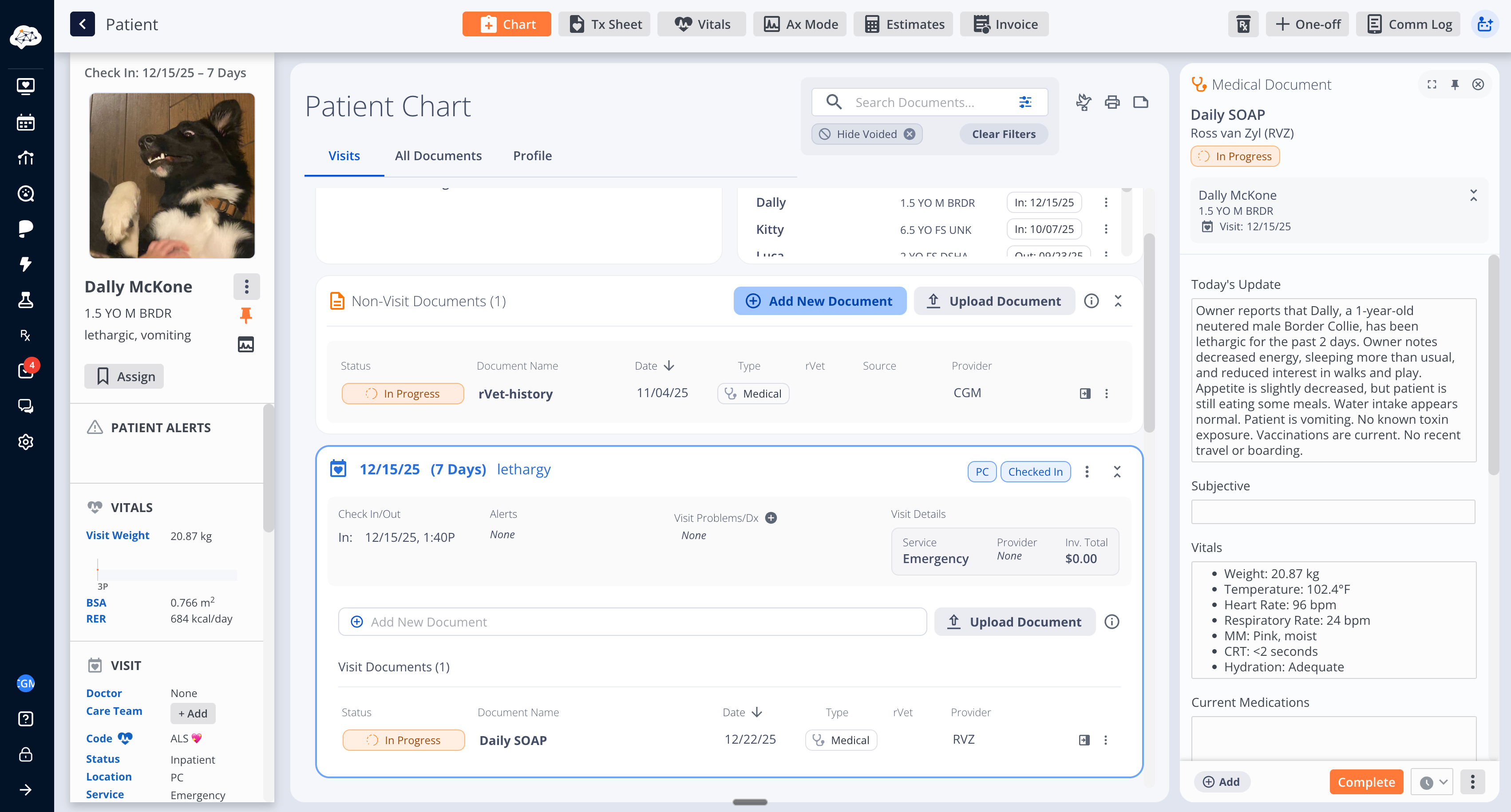
Your content will appear in Instinct just where you need it.
Was this article helpful?
That’s Great!
Thank you for your feedback
Sorry! We couldn't be helpful
Thank you for your feedback
Feedback sent
We appreciate your effort and will try to fix the article