Setting up the Vettigo Integration allows CoVet to import appointments from Vettigo and export visit documentation back once the consult is complete.
Once the integration is set up, your team can start cases from Vettigo appointments and keep records aligned between both systems
There are multiple articles that will help you with different aspects of the Vettigo Integration.
Use these links to jump between these articles quickly.
Important to read before using the integration
How to use the integration following set-up
How to Set Up the Vettigo Integration
1. Navigate to Integrations
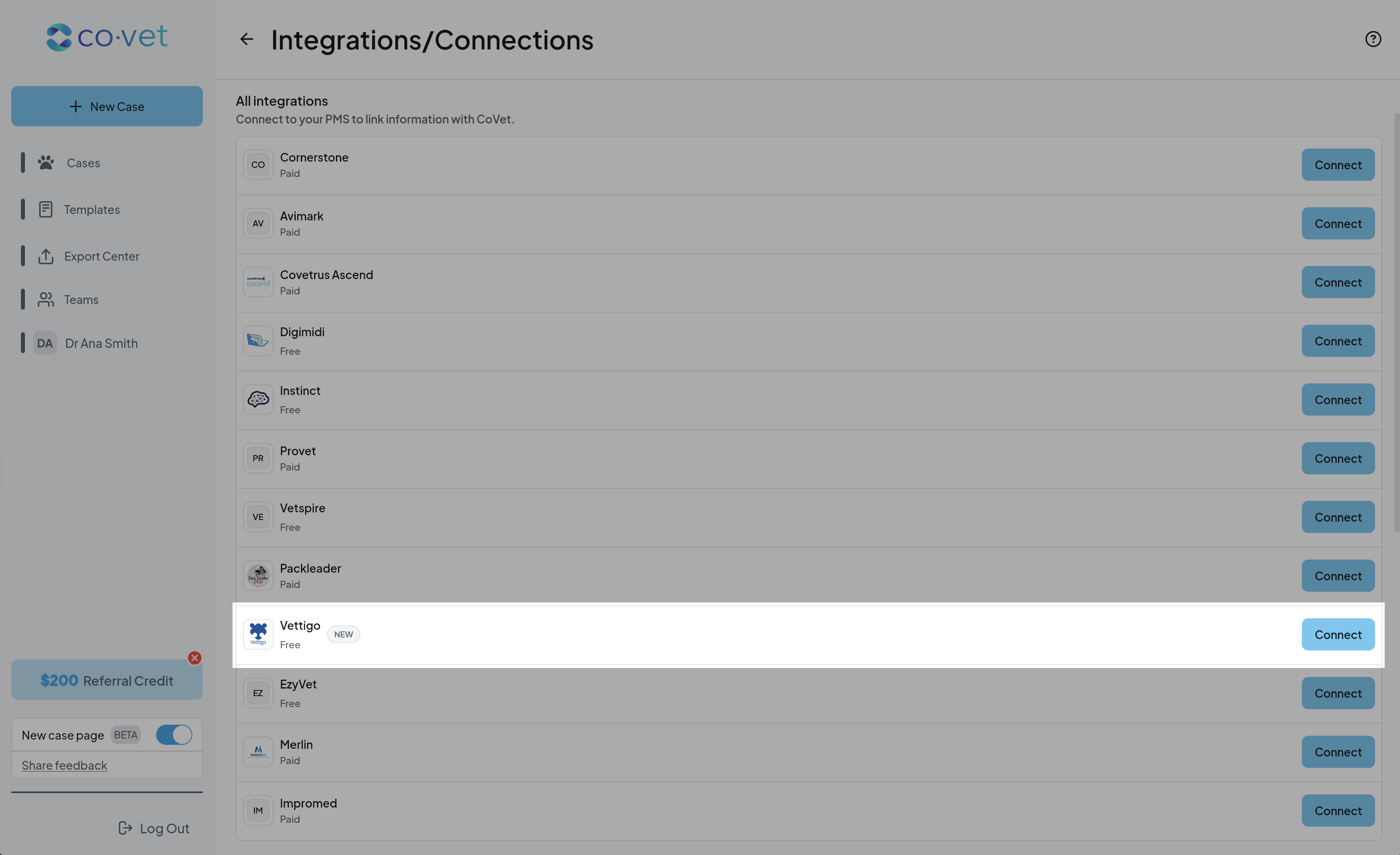
Click your name in the top navigation to open My Account, then select Integrations / Connections.
2. Select the Vettigo Integration
Find Vettigo and click Connect.
3. Review integration requirements
You’ll see a screen outlining:
- What data CoVet can import and export
- Known limitations of the Vettigo integration (such as formatting and appointment requirements)
Review these details before continuing.
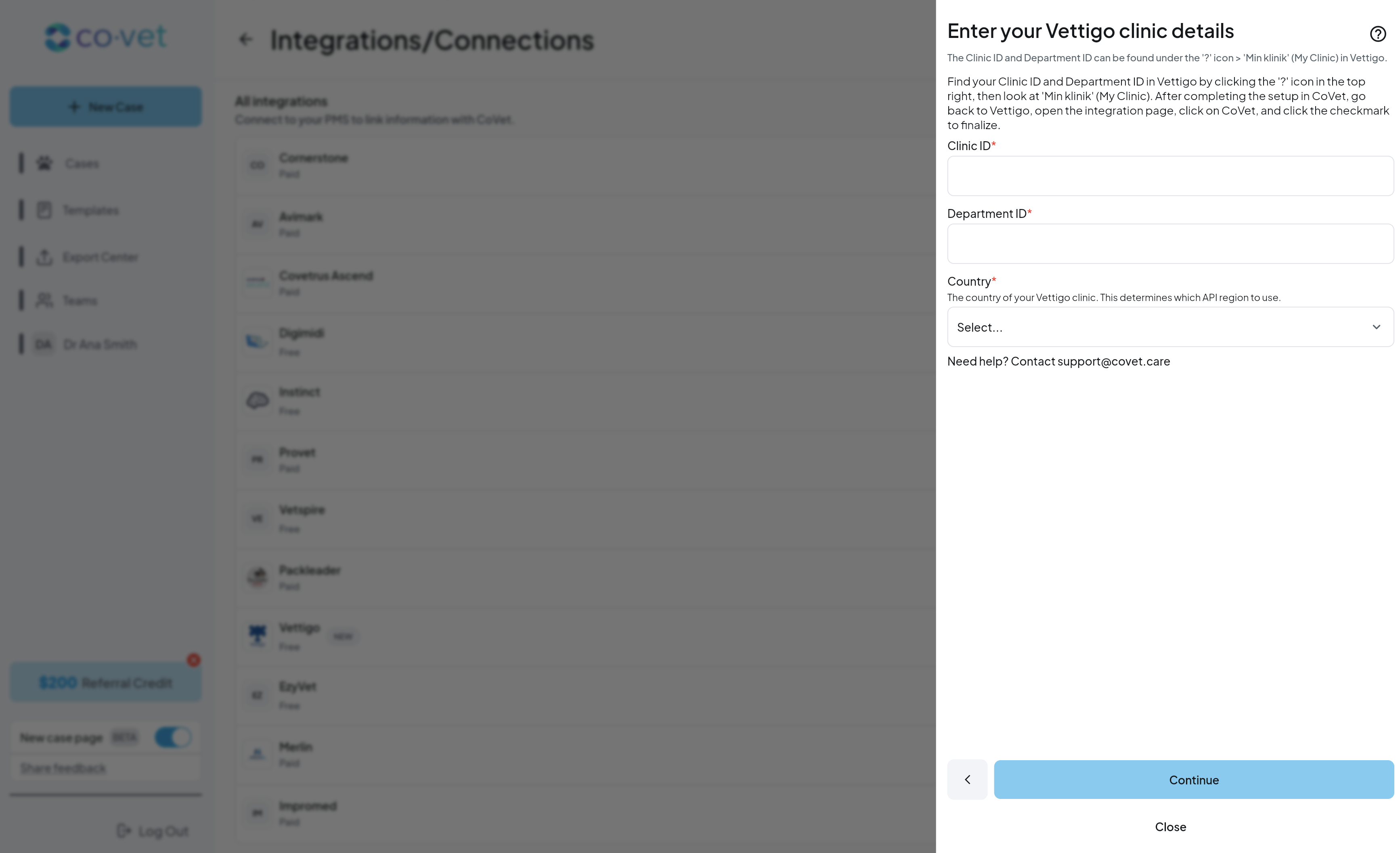
4. Add your Vettigo information into CoVet
To complete the setup, you will need to enter the following information into CoVet:
- Department ID
- Clinic ID
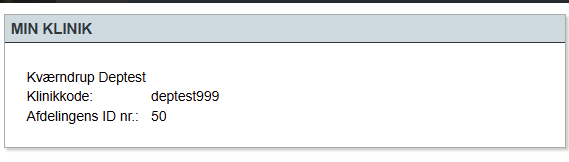
To find this information in Vettigo:
- Click the question mark (?) in the top right-hand corner of the screen.
- Locate the box labeled “Min klinik” (which means My Clinic).
- Your Department ID and Clinic ID are listed there.
5. Enable CoVet inside Vettigo
To complete activation:
- Log into Vettigo
- Open the Integrations page
- Select CoVet
- Click the checkmark to confirm consent and finalize activation
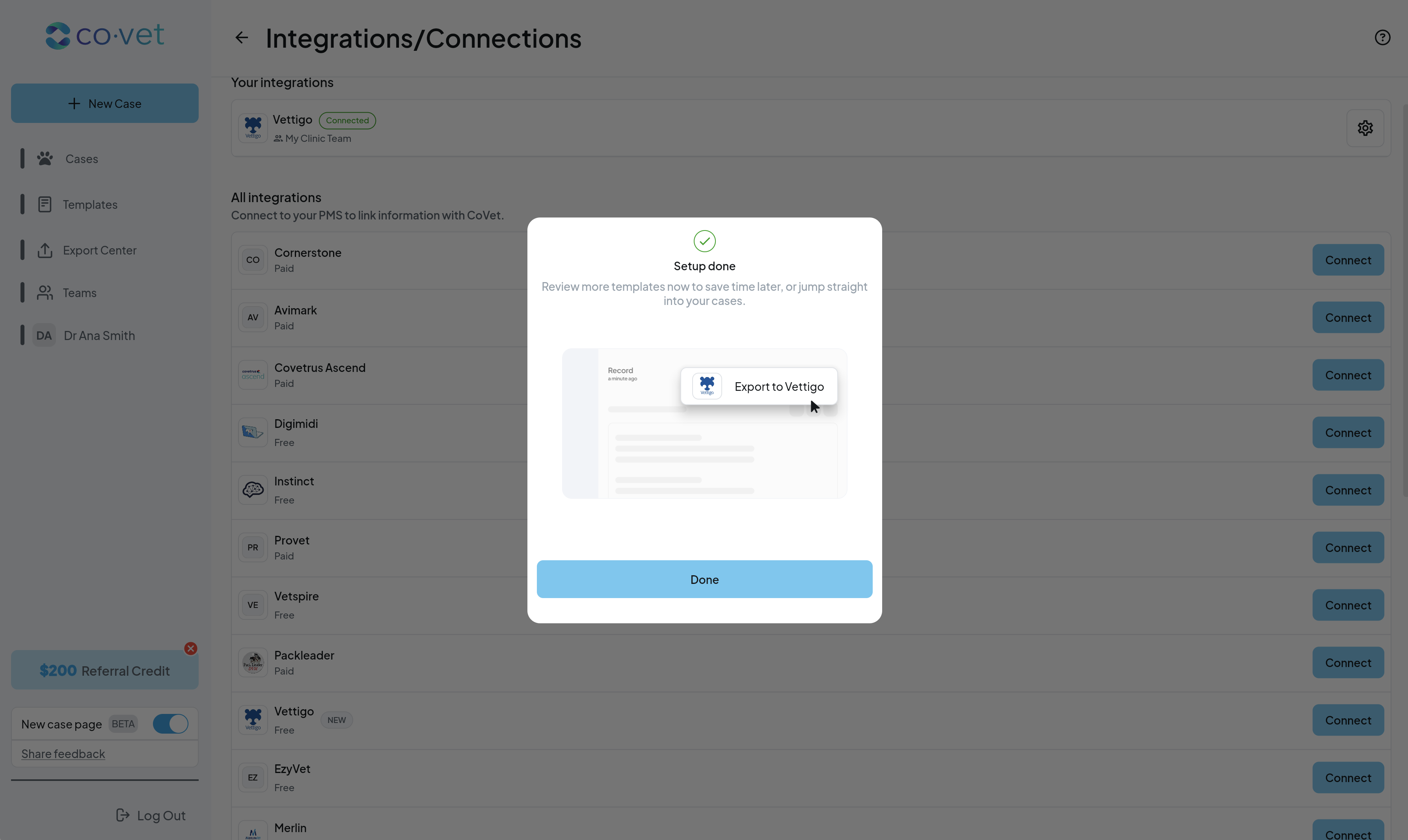
6. Complete setup
Once confirmed, you’ll see a success message in CoVet. Your Vettigo integration is now ready to use.
Was this article helpful?
That’s Great!
Thank you for your feedback
Sorry! We couldn't be helpful
Thank you for your feedback
Feedback sent
We appreciate your effort and will try to fix the article