Once a case is linked to a Vettigo appointment, you can export documentation back to Vettigo with a single click.
There are multiple articles that will help you with different aspects of the Vettigo Integration.
Use these links to jump between these articles quickly.
Important to read before using the integration
How to use the integration following set-up
What Gets Exported
- SOAP notes
- Visit documentation
- Discharge summaries
All exports are sent as plain text only.
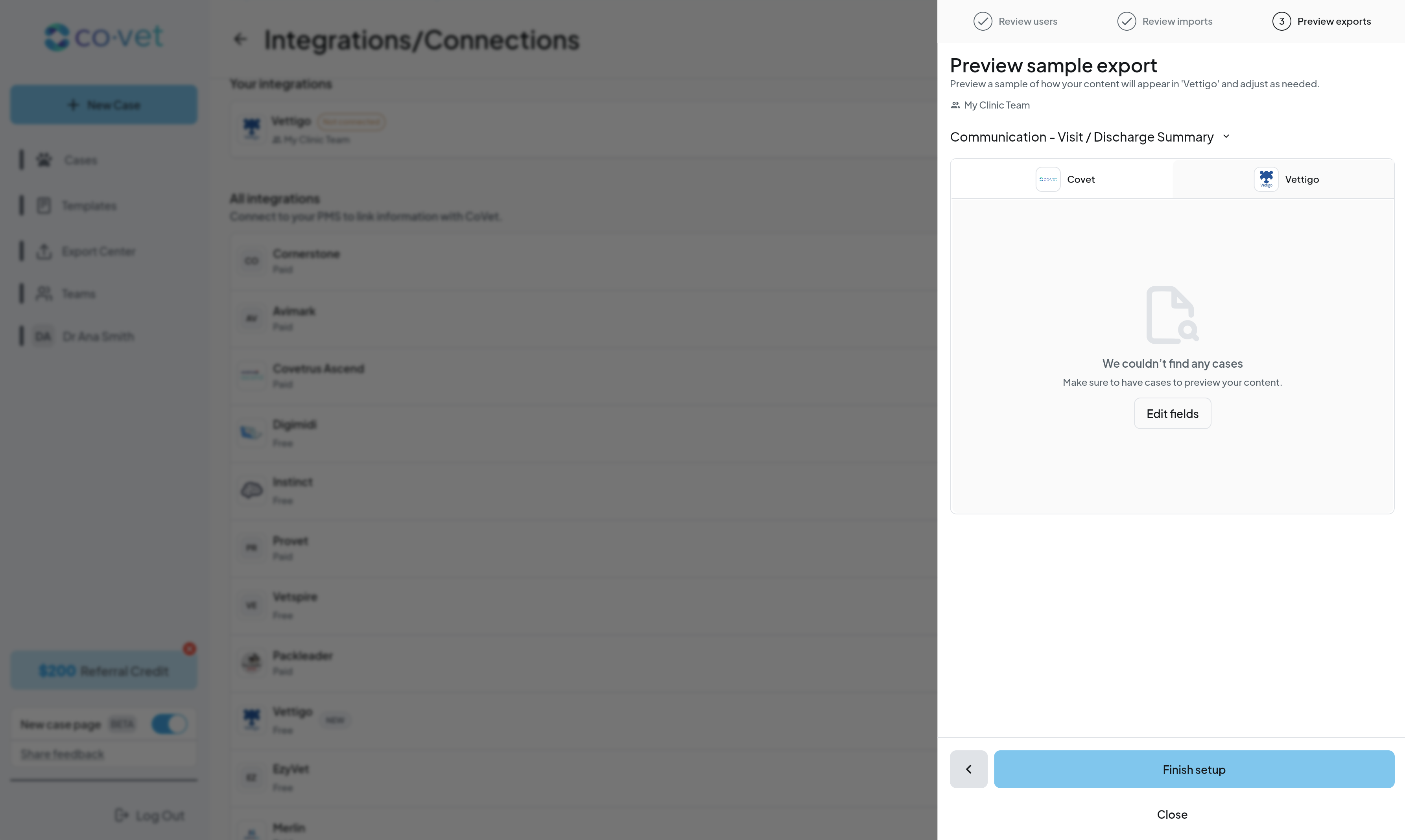
How to Export a Document
1. Open the case
Open the case you want to export from.
2. Open the document
Click the document you want to send to Vettigo.
3. Export to Vettigo
Click Export to Vettigo in the top-right corner.
4. Review and confirm
Review the preview. If everything looks correct, click Export to Vettigo.
Unlinked Cases
If a case is not linked:
- You'll be prompted to link it before exporting
- Linking is required for export to succeed
Troubleshooting
Why can’t I export rich formatting?
Vettigo currently supports plain text only.
Why don’t I see my appointment?
Check that the appointment has a confirmed patient in Vettigo.
Was this article helpful?
That’s Great!
Thank you for your feedback
Sorry! We couldn't be helpful
Thank you for your feedback
Feedback sent
We appreciate your effort and will try to fix the article