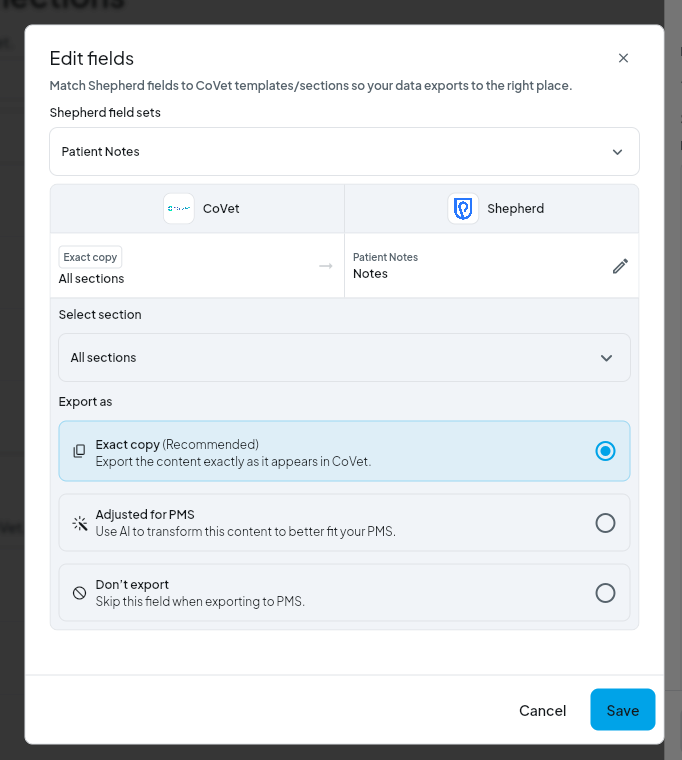
Mapping templates controls how your CoVet documentation is exported into Shepherd. All CoVet templates export to a single destination in Shepherd: Patient Notes.
There are multiple articles that will help you with different aspects of the Shepherd Integration
Use these links to jump between these articles quickly.
There are multiple articles that will help you with different aspects of the Shepherd Integration
Use these links to jump between these articles quickly.
How Template Mapping Works with Shepherd
When exporting documents to Shepherd:
- All content is written back as one Patient Note
- There are no multiple field boxes to map to
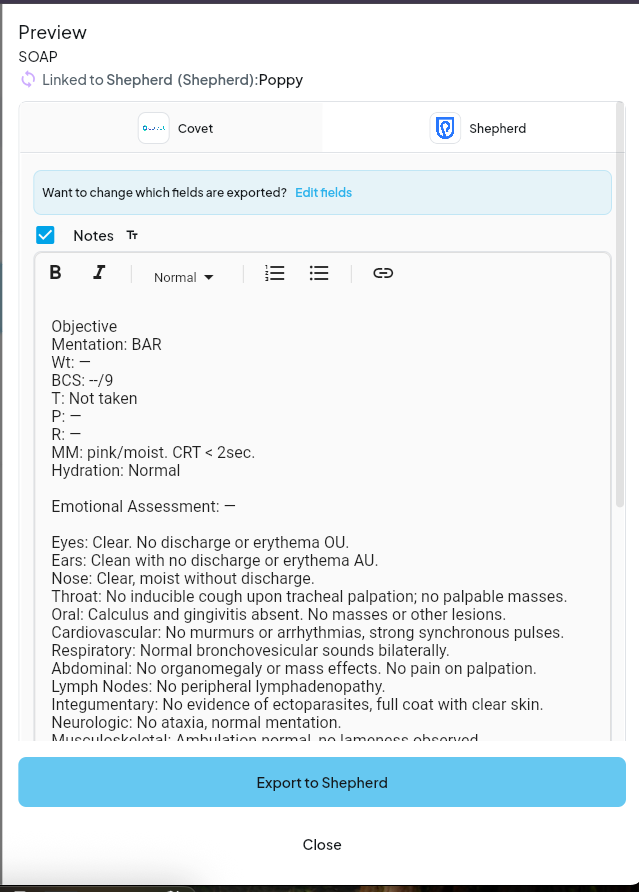
- SOAP templates support rich text formatting
- Non-SOAP templates export as plain text
- Exports use Shepherd’s Patient Notes format
Mapping Templates from Templates
1. Open a template
Go to Templates and open the template you want to map.
2. Preview export to Shepherd
Click Preview for Shepherd to see how your templates will export as a Patient Note.
3. Review or edit fields
Click Edit fields to open the field editor and choose which fields or sections are included in the export.
You can also click Change case to preview the export using different case data.
4. Save your mapping
Click Save to apply the mapping to this template.
Editing Template Mapping
You can update export template settings at any time from Integration Settings:
Gear icon on the Shepherd card → Settings tab → Exporting section
Was this article helpful?
That’s Great!
Thank you for your feedback
Sorry! We couldn't be helpful
Thank you for your feedback
Feedback sent
We appreciate your effort and will try to fix the article