Once a case is linked to a Shepherd appointment, you can export documentation from CoVet back to Shepherd as a Patient Note.
There are multiple articles that will help you with different aspects of the Shepherd Integration
Use these links to jump between these articles quickly.
There are multiple articles that will help you with different aspects of the Shepherd Integration
Use these links to jump between these articles quickly.
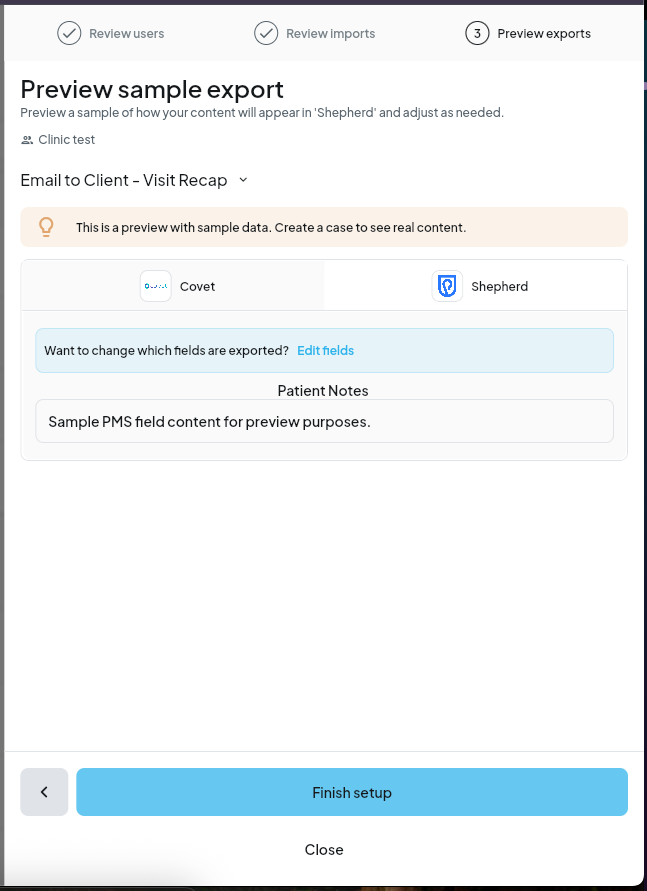
What Gets Exported
- SOAP notes
- Visit documentation
- Discharge summaries
All content is exported as one Patient Note per export action.
Formatting Support
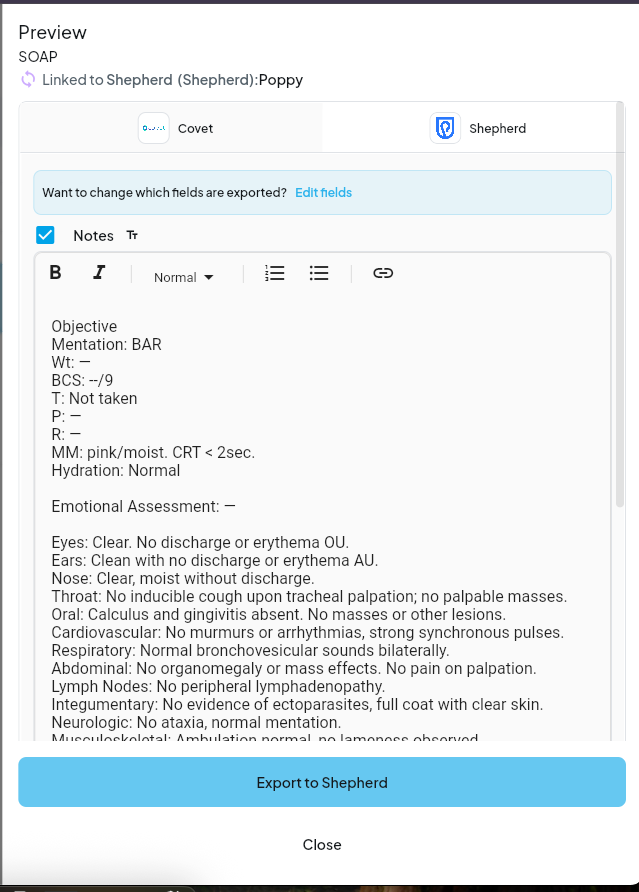
SOAP templates support rich text formatting in Shepherd.
Non-SOAP templates, such as summaries, do not support rich text formatting and are exported as plain text.
Content appears under the patient’s profile in Shepherd as a Patient Note.
Patient Notes can be found in Shepherd under: Patient Profile → ⋮ (three dots) → Add Note
How to Export a Document
1. Open the case
Open the case you want to export from.
2. Open the document
Select the document you want to export.
3. Export to Shepherd
Click Export to Shepherd in the top-right corner.
4. Review and confirm
Preview how the document will appear as a Patient Note.
When ready, click Export.
Export Behavior Notes
- Each export creates one Patient Note.
- Only one record can be exported at a time.
- Cases must be assigned to a user before they can be exported.
- Unassigned cases cannot be exported.
- Re-exporting is supported and overwrites the previous entry in Shepherd.
- After export, the record is marked Exported with a timestamp in the case activity log.
- Images and attachments are not supported in exports.
Was this article helpful?
That’s Great!
Thank you for your feedback
Sorry! We couldn't be helpful
Thank you for your feedback
Feedback sent
We appreciate your effort and will try to fix the article