Setting up the Covetrus Ascend integration allows CoVet to import scheduled appointments and export visit documentation back to Covetrus Ascend as specific note types.
There are multiple articles that will help you with different aspects of the Covetrus Ascend Integration.
Use these links to jump between these articles quickly.
There are multiple articles that will help you with different aspects of the Covetrus Ascend Integration.
Use these links to jump between these articles quickly.
Once the integration is enabled, your team can document visits in CoVet and keep patient records aligned with Covetrus Ascend.
How to Set Up the Covetrus Ascend Integration
Covetrus Ascend credentials are managed manually. To activate the integration:
1. Navigate to Integrations
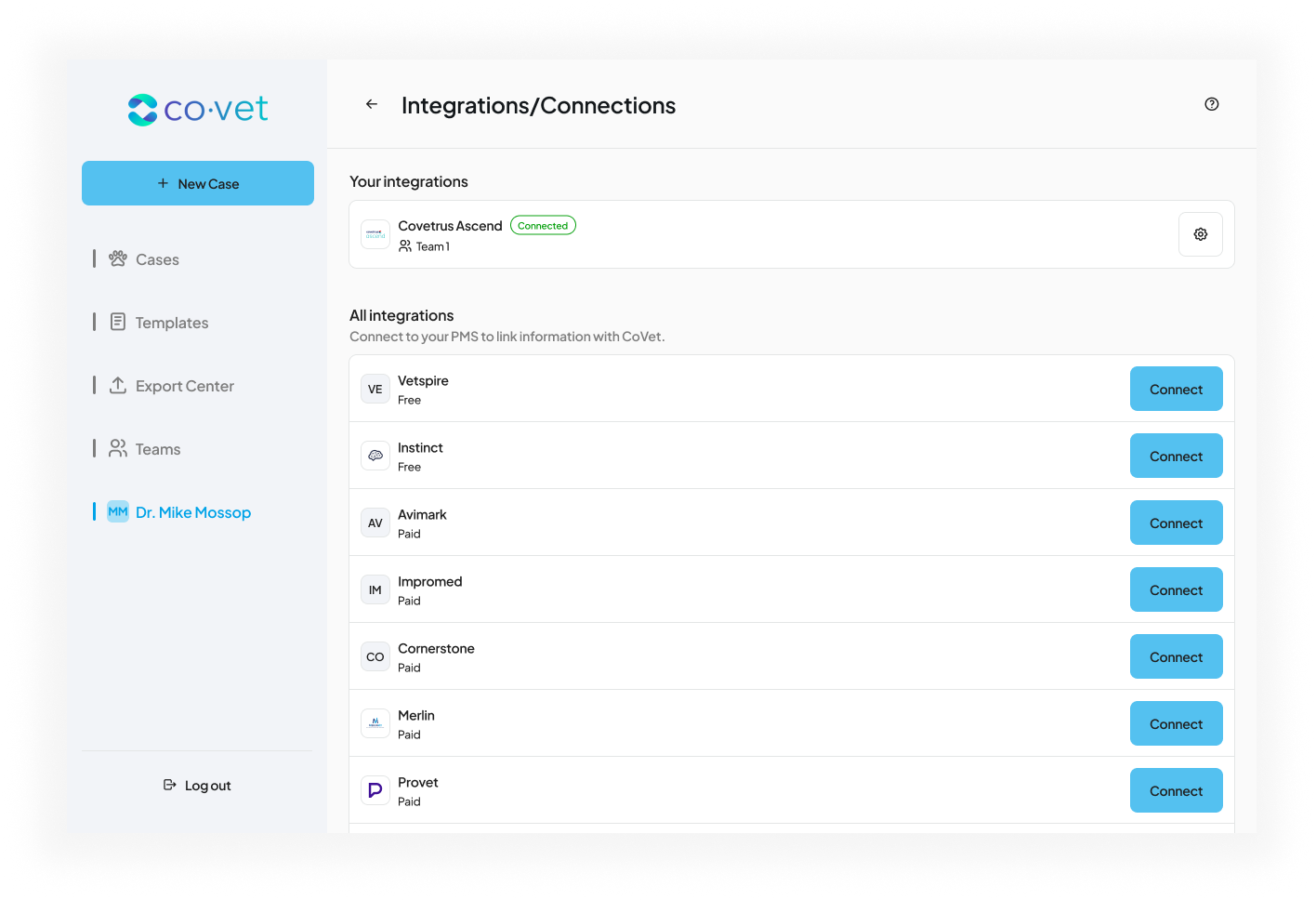
Click your name at the top of the lefthand navigation bar to open your Profile, then select Integrations/Connections.
2. Select the Covetrus Ascend integration
Locate Covetrus Ascend in the list and click Connect.
3. Enter your Credentials
CoVet will ask you for your Covetrus Ascend Subscription Key linked to your clinic.
Important note about pricing
The price shown in the image is not representative of the actual cost for your clinic.
Pricing is based on a monthly fee of A$50 GBP per clinic, not the number of users.
This integration fee will appear on your usual CoVet invoice and will renew according to your regular billing cycle (monthly or annual) until the integration is deleted. This cost will be prorated, and you will not be charged until Covetrus Ascend approves the integration.
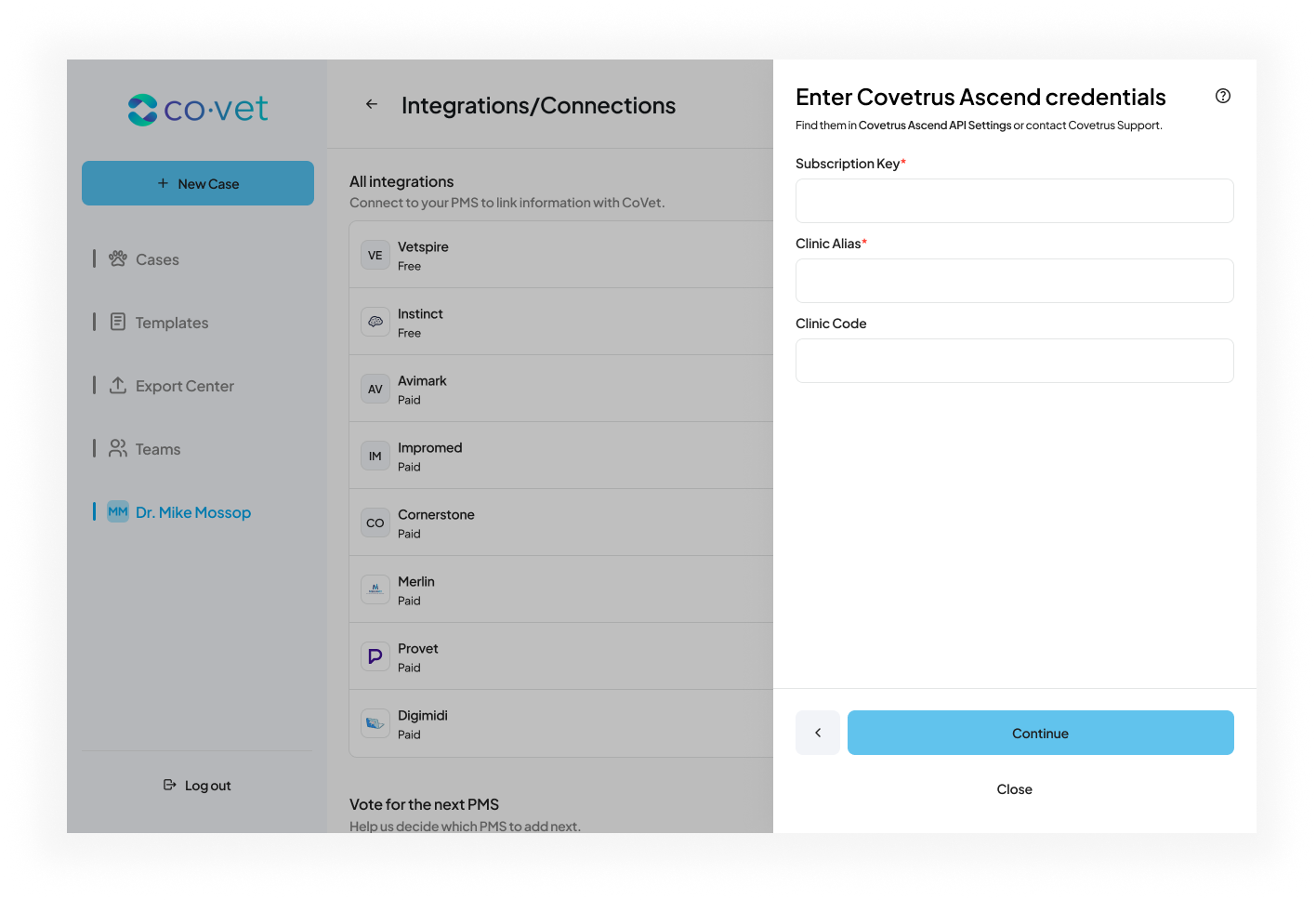
4. Complete setup
Once the Subscription Key is entered, you’ll be able to review users and teams.
After selecting your name or team in the Review users screen, you’ll be able to review imports and exports.
Was this article helpful?
That’s Great!
Thank you for your feedback
Sorry! We couldn't be helpful
Thank you for your feedback
Feedback sent
We appreciate your effort and will try to fix the article